


Let me introduce you to the Shape Browser feature in the P Useful tab.
With the Shape Browser, you can view a list of all shapes in the file!
It’s a powerful tool when checking for:
- Shapes that extend outside the slide
- Shapes using non-standard fonts
Especially useful when checking across numerous pages!
How to Use
1. By clicking the Shape Browser icon in the P Useful tab, the Shape Browser screen will appear.
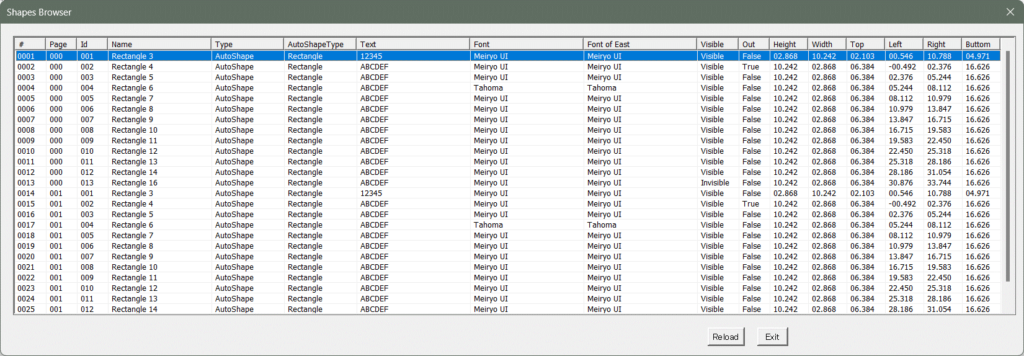
2. By clicking the Shape Browser icon in the P Useful tab, the Shape Browser screen will appear.
It shows the following information for each shape:
| Column names | Values |
|---|---|
| # | Number assigned to shapes within the file |
| Page | Slide number If slide numbers start from 0, page numbers will be displayed as “000”, “001”, “002”, etc. |
| Id | Position of the shape within the page |
| Name | Name of the shape |
| Type | Type of the shape, such as “Table”, “AutoShape”, “Comments”, etc. |
| AutoShapeType | If the shape is an AutoShape, the type of AutoShape will be displayed, such as “Rectangle”, “Isosceles triangle”, “Rectangular callout”, etc. |
| Text | ShText entered into the shape |
| Font | Lating text font set for the shape If multiple fonts are mixed, “(Mixed)” will be displayed |
| Font of East | Asian text font set for the shape If multiple fonts are mixed, “(Mixed)” will be displayed |
| Visible | Visibility of the shape: “Visible” for displayed shapes, “Invisible” for hidden shapes |
| Out | Whether the shape extends beyond the slide: “True” for shapes extending off-slide |
| Height | Height of the shape in 0.001 cm units |
| Width | Width of the shape in 0.001 cm units |
| Top | Top position of the shape in 0.001 cm units |
| Left | Left position of the shape in 0.001 cm units |
| Right | Right position of the shape in 0.001 cm units |
| Buttom | Bottom position of the shape in 0.001 cm units |
3. You can sort the columns in ascending or descending order by clicking on them.
For example, if you want to find shapes that extend outside the slide, clicking on the “Out” column will reorder the Shape Browser as follows:

Two shapes with “True” in the Out column were found.
Clicking on a row in the Shape Browser will select that shape in PowerPoint.
Additionally,
- To find hidden shapes, click on the “Visible” column.
- To check for unexpected fonts, click on the “Font” or “Font of East” columns.
- To check for comments, click on the “Type” column.
There are many useful ways to review the presentation.
This tool is extremely useful for merging PowerPoint presentations created by multiple people and for the final check before submitting documents to clients!
Please give it a try!
You can download the Power Up Kit from here.


Comments