


Let me introduce you to the Same Adjustment feature on the P Shape tab.
With Same Adjustment, you can align the positions of adjustments (the orange circles on shapes).
When using multiple Arrows, you can also perfectly align the positions of the bends. Additionally, you can make rounded shapes have the same shape.
How to Use
- Select shapes in your PowerPoint presentation.
- Clicking the Same Adjustment icon aligns the adjustments of the selected shapes to the same position.
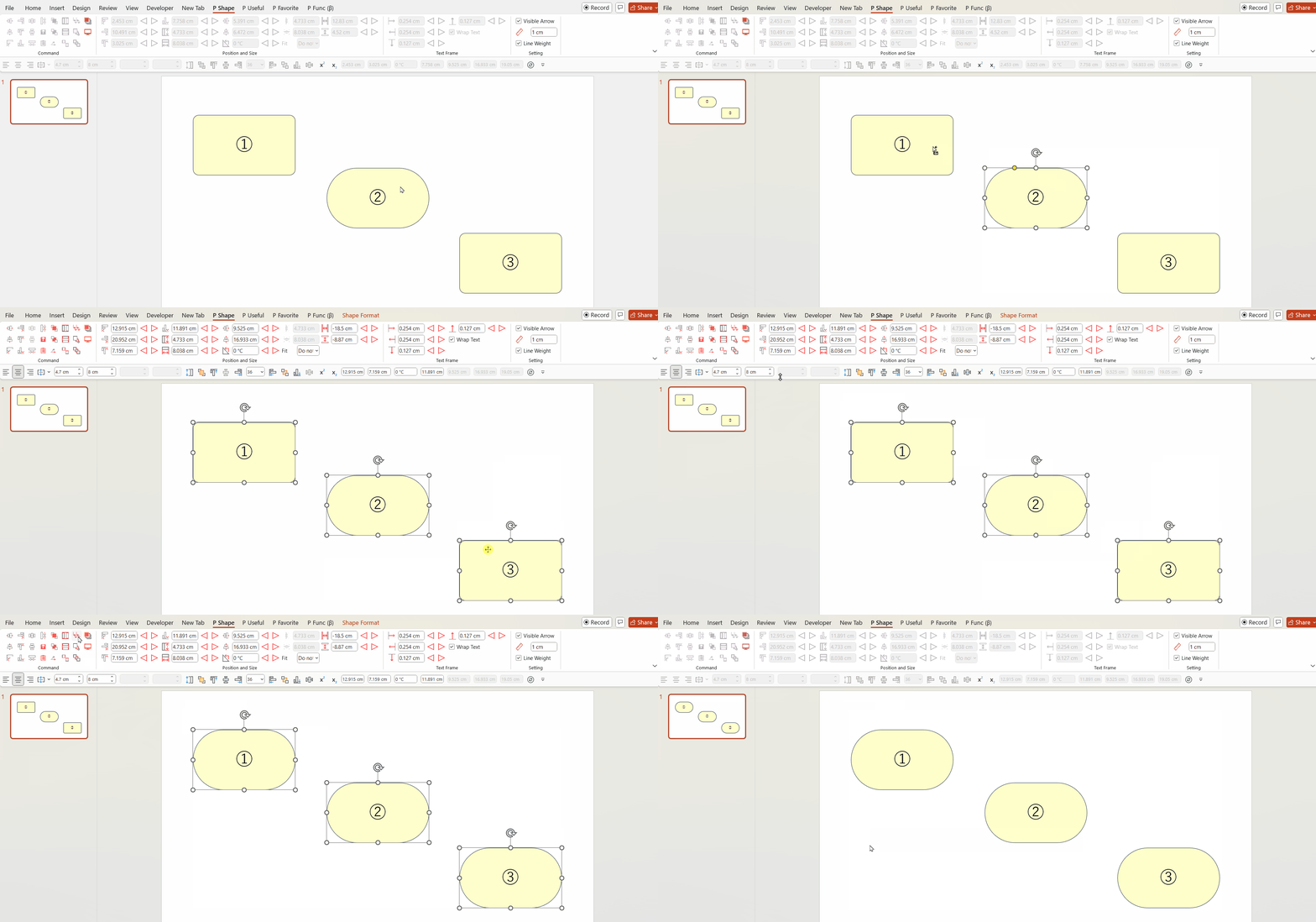
Please refer to the GIF image below.
First, select the shape labeled ②, then select shapes ① and ③. After that, execute Same Adjustment, and the adjustments will be perfectly aligned.
This works not only for rectangles but also for Arrows.
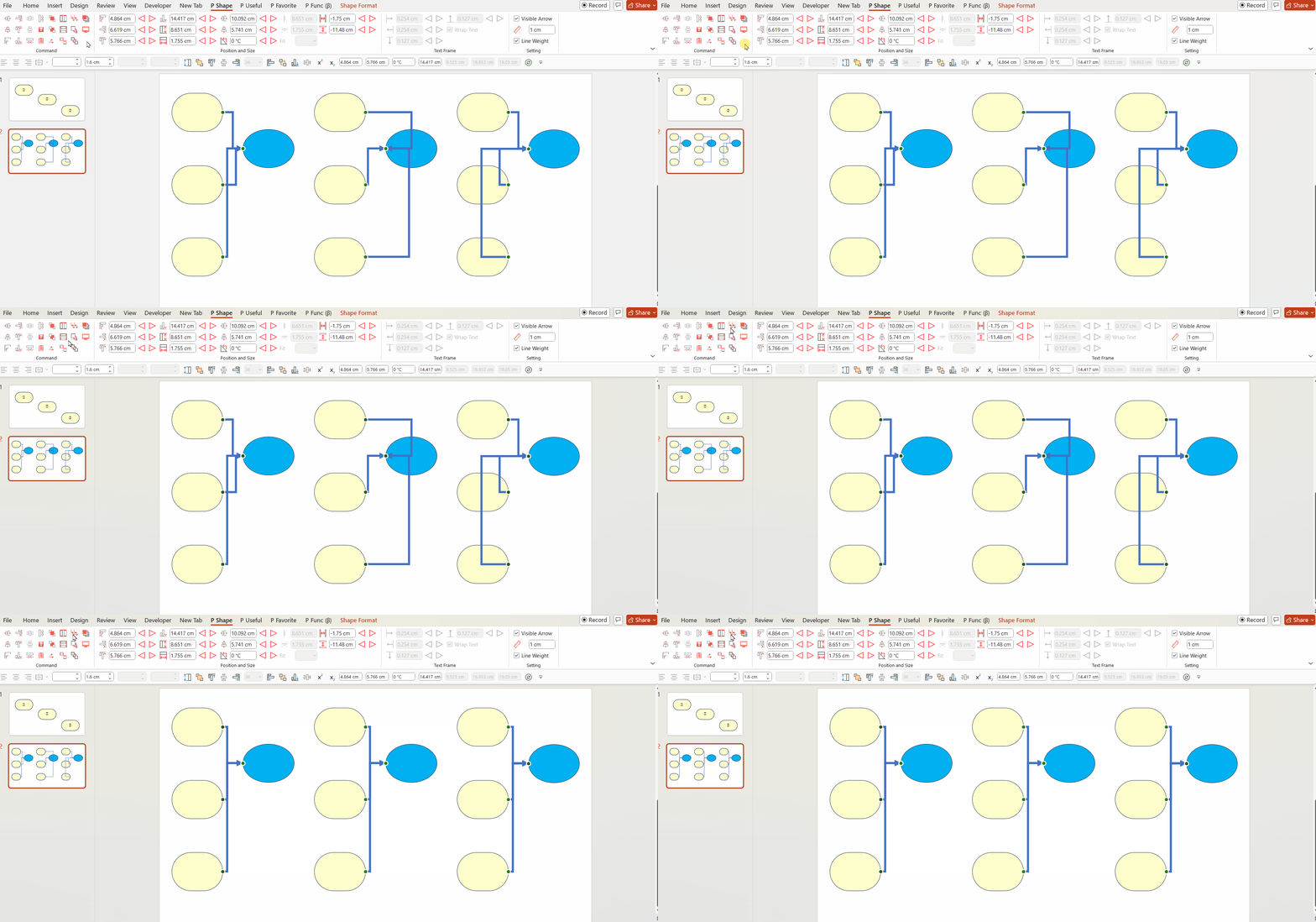
It is a unique feature that allows you to perfectly align adjustments that are difficult to adjust!
Please make the most of it.
You can download the Power Up Kit from here.


Comments