

P Useful tab provides convenient functions not limited to Shape.
Copy
Copy shapes to streamline slide creation.

Freeform Copy
Convert selected AutoShapes to FreeForm.

Patch
Copy the initially selected AutoShape and paste it to the top left of the second and subsequent shapes.
Details are available here.

Table
Efficient manipulation of table in PowerPoint.

Insert Shape Align
Display a rectangle copied from the cell width and column around the selected table.
This is an extremely powerful tool for aligning other shapes based on table cells.
Details are available here.

Browser
Search for shapes within the presentation, greatly enhancing quality.

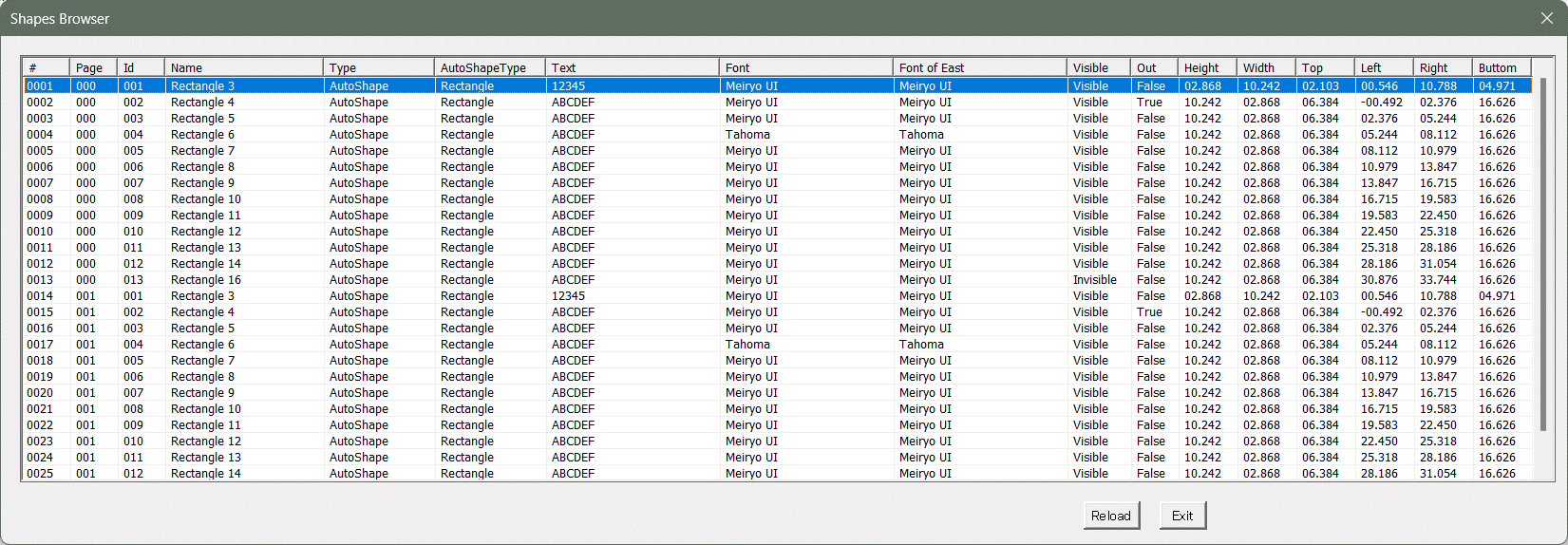
Shape Browser
Display all types, names, positions (top, bottom, left, right), heights, and widths of all shapes within the presentation.
Easily find shapes outside slides, hidden shapes, and comments.
Comments within the presentation can also be easily located.
Details are available here.
Slide
Display the size of the slides in the Presentation.

Slide Height
Display the size of slides within the presentation.
The value cannot be changed.

Slide Width
Display the height of the slide.
The value cannot be changed.

Slide Middle
Display the vertical center position of the slide.
The value cannot be changed.

Slide Center
Display the horizontal center position of the slide.
The value cannot be changed.
Settings
Modify settings for the Power Up Kit.
Customize of convenient functions according to personal preferences.

Key Tip
Set shortcuts for all functions according to your preference.

Favorites Label
Set labels for saved shapes and slide call buttons in the P Favorite tab.

IF File
Set the pptx file for saving and calling shapes and slides in the P Favorite tab.

Favorite Functions
Change the command ID to be called in the P Func tab.

Reload All
Refresh all tabs.
Press if there are any issues.

Help
Open the PowerUpKit official website.
Comments