

On the P Shape tab, we solve PowerPoint Shape issues.
Command
Align shapes with a single button.
Align Middle
Align vertically based on the initially selected Shape.
Details are available here.
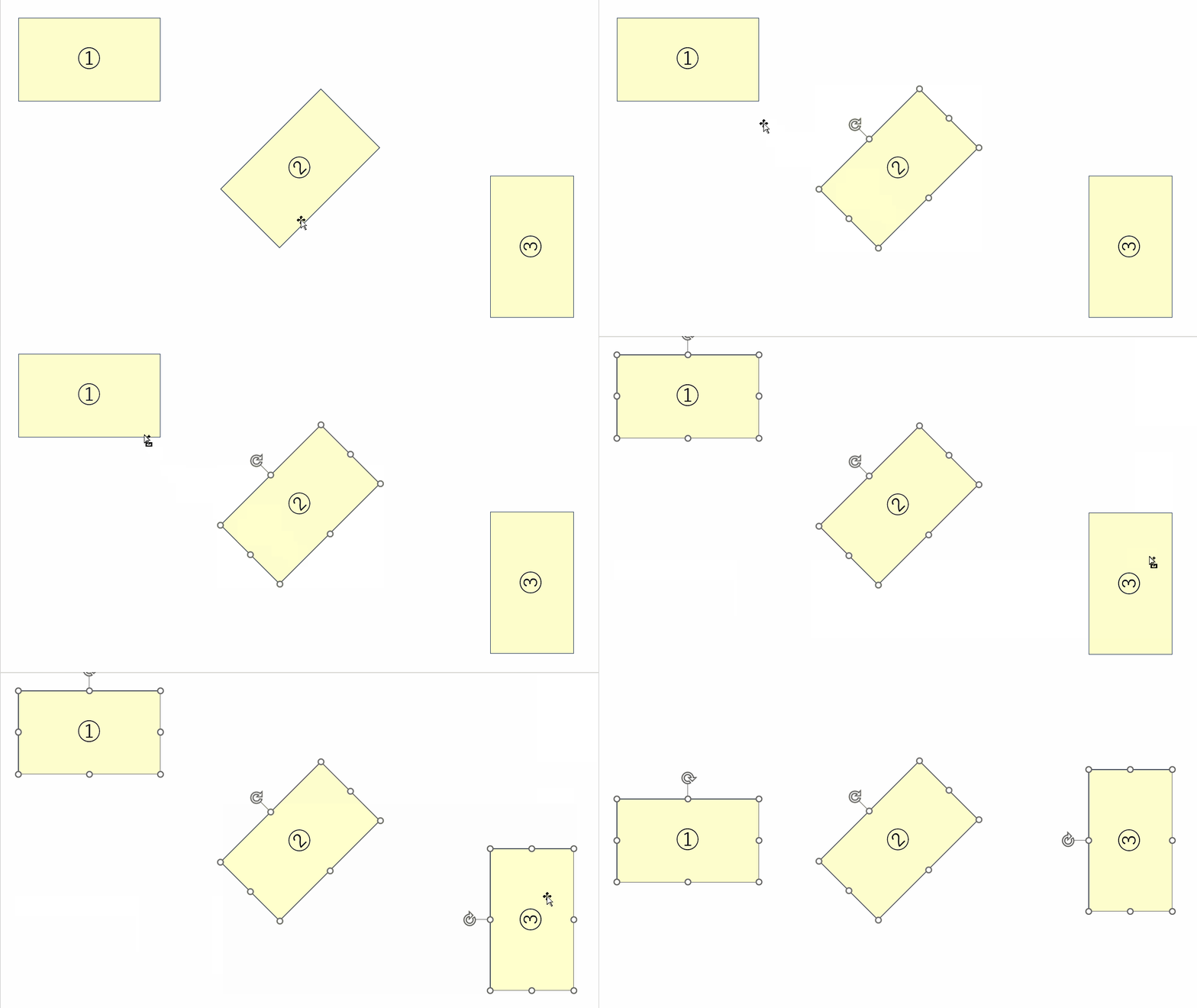
Align Center
Align horizontally based on the initially selected Shape.
Details are available here.
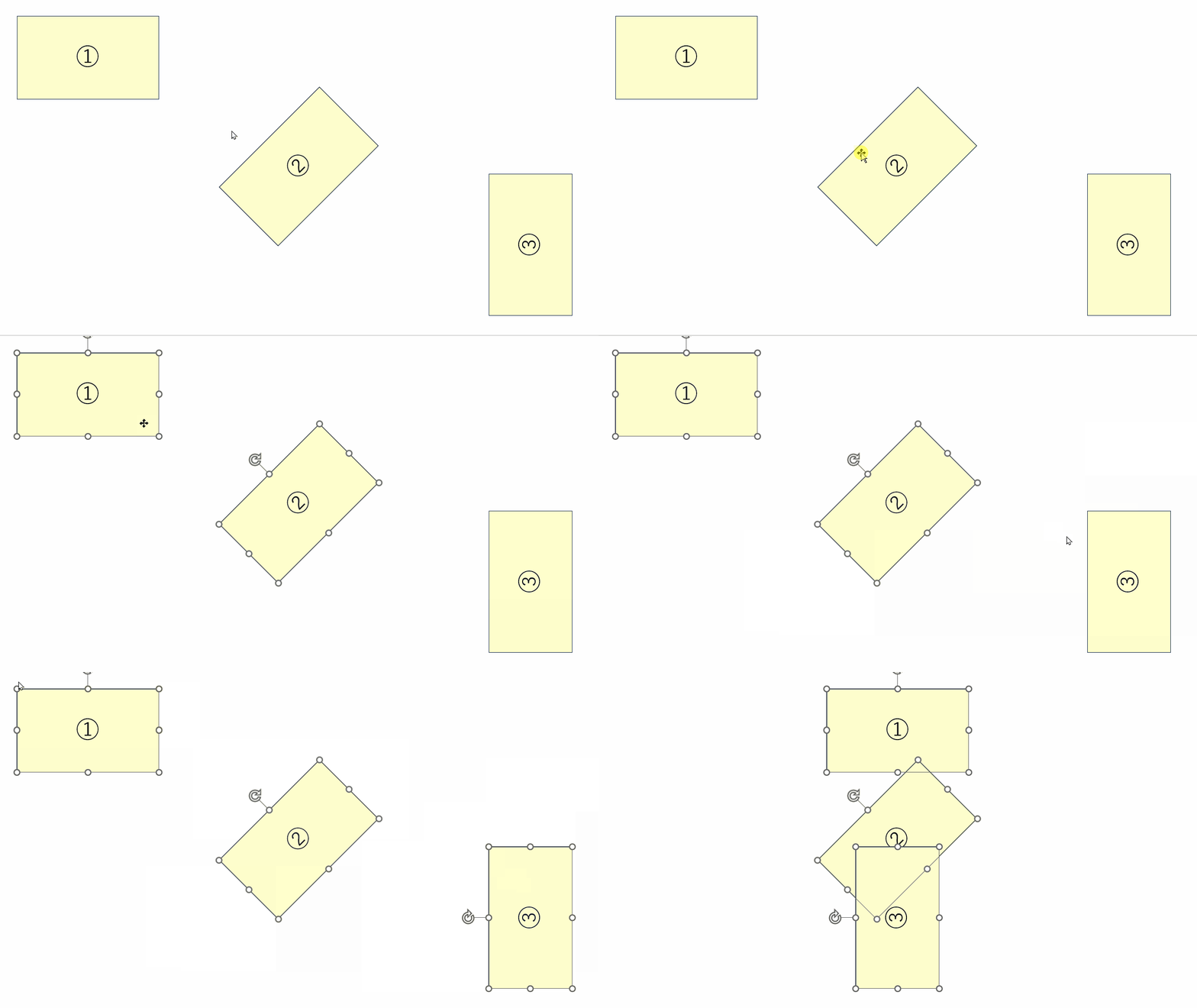

Align Left
Align to the left of the initially selected Shape.
Details are available here.
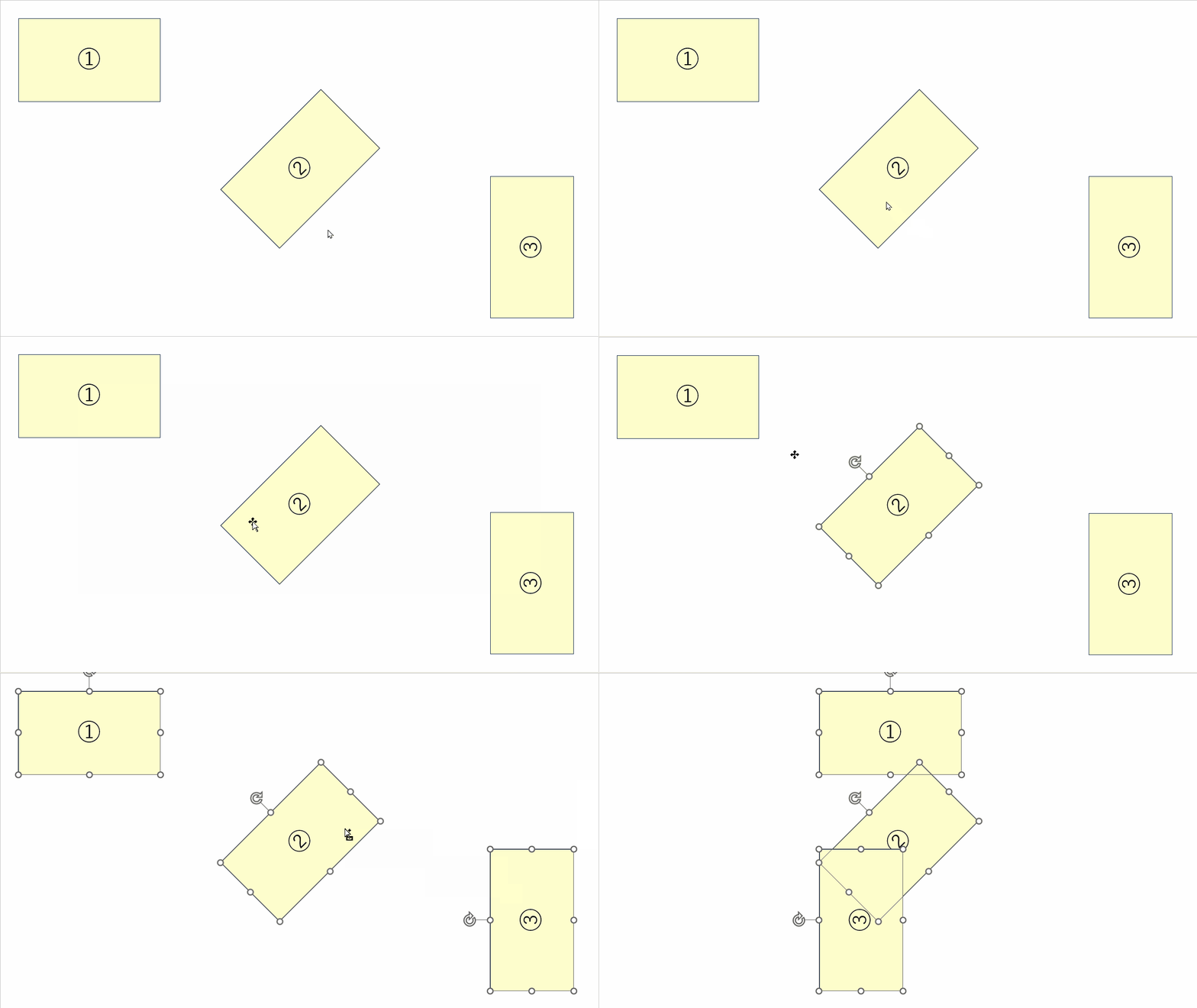
Align Right
Align to the right of the initially selected Shape.
Details are available here.
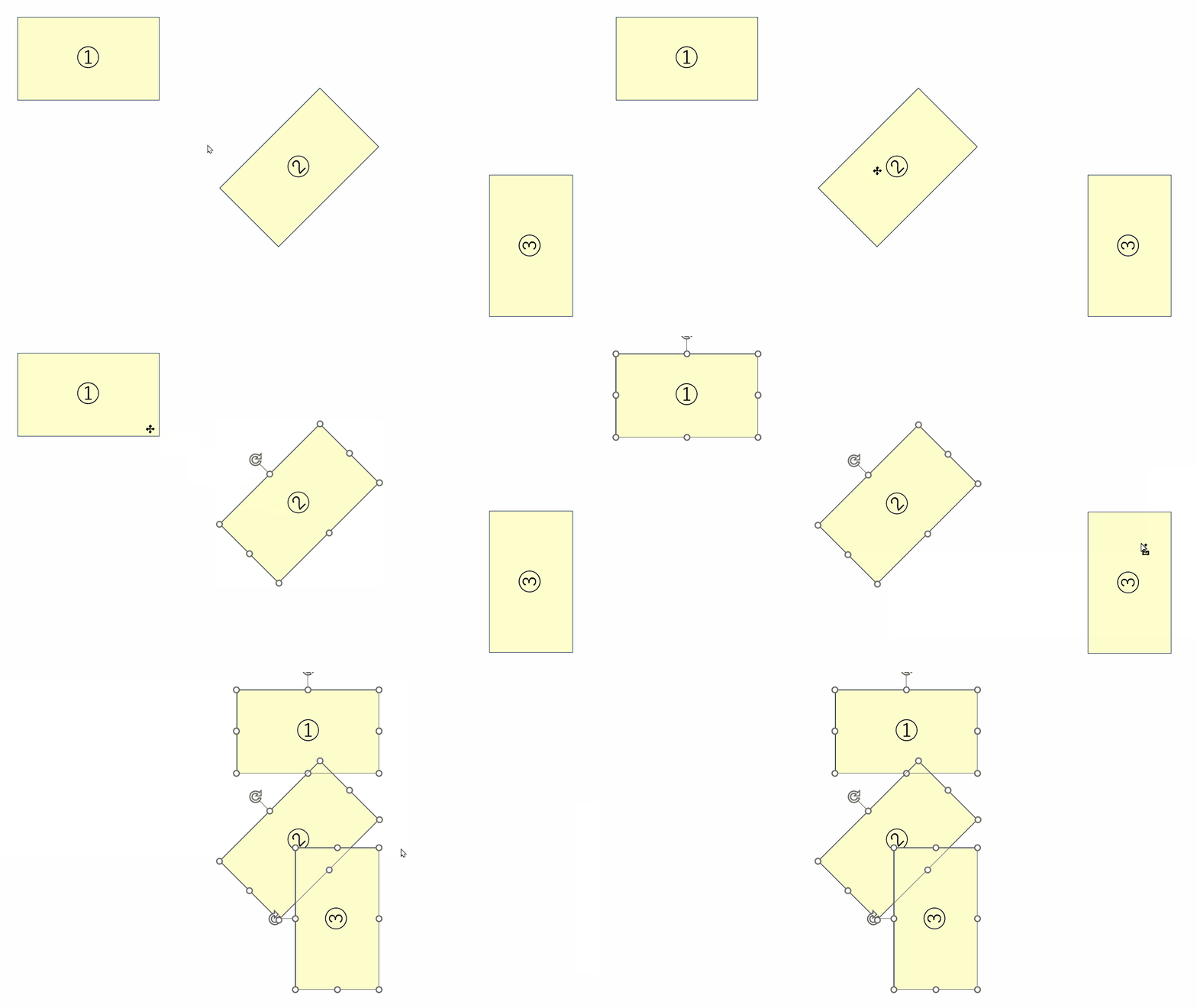
Align Top
Align to the top of the initially selected Shape.
Details are available here.
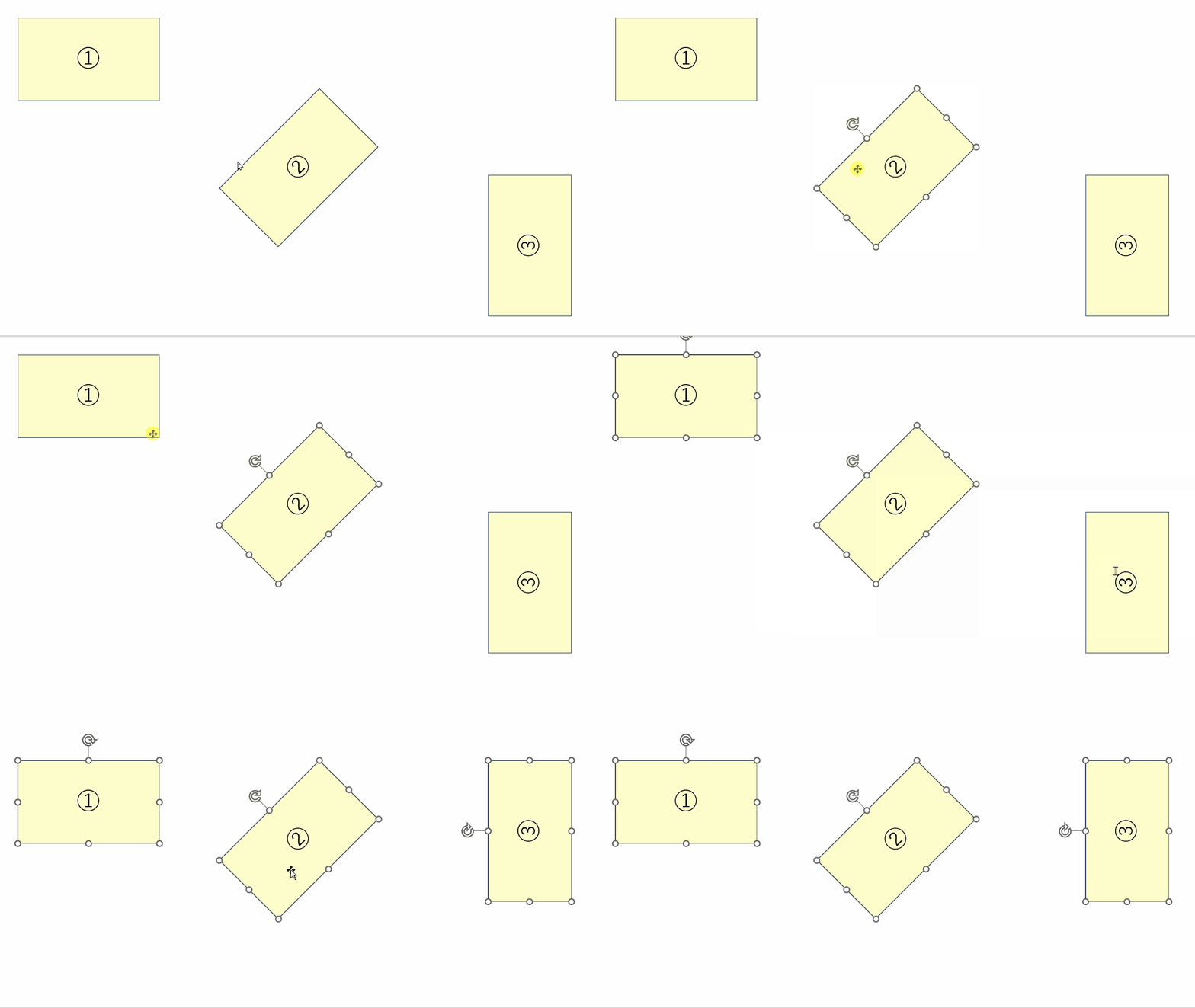
Align Bottom
Align to the bottom of the initially selected Shape.
Details are available here.
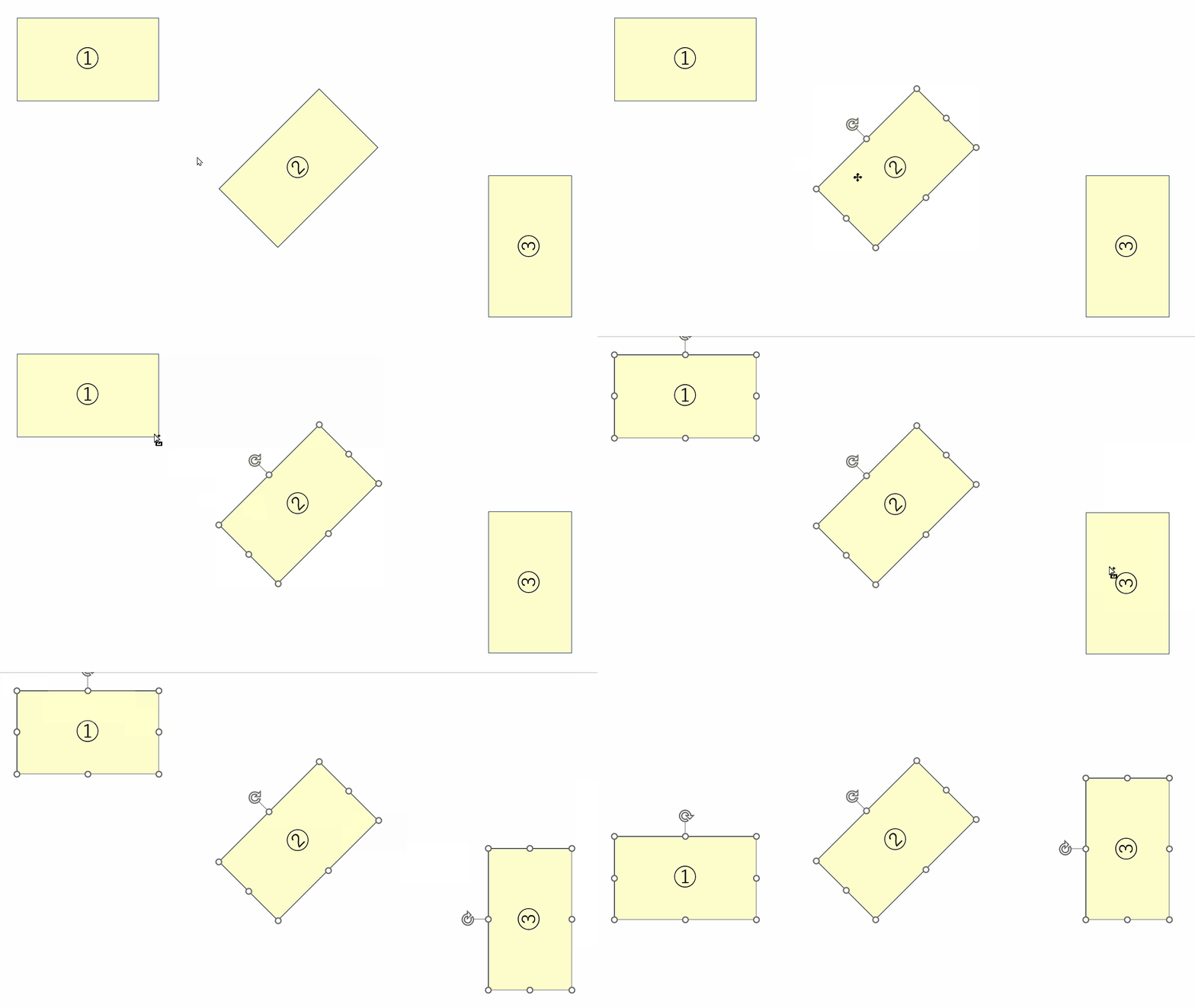
Distribute Horizontally
Align the selected shapes evenly horizontally.
Although this is the same as PowerPoint’s default feature, it is highly frequently used, so we have made it available in PowerUpKit as well.
By using PowerUpKit’s shortcut registration feature, you can call it up with easier-to-remember shortcuts than those in Quick Access!
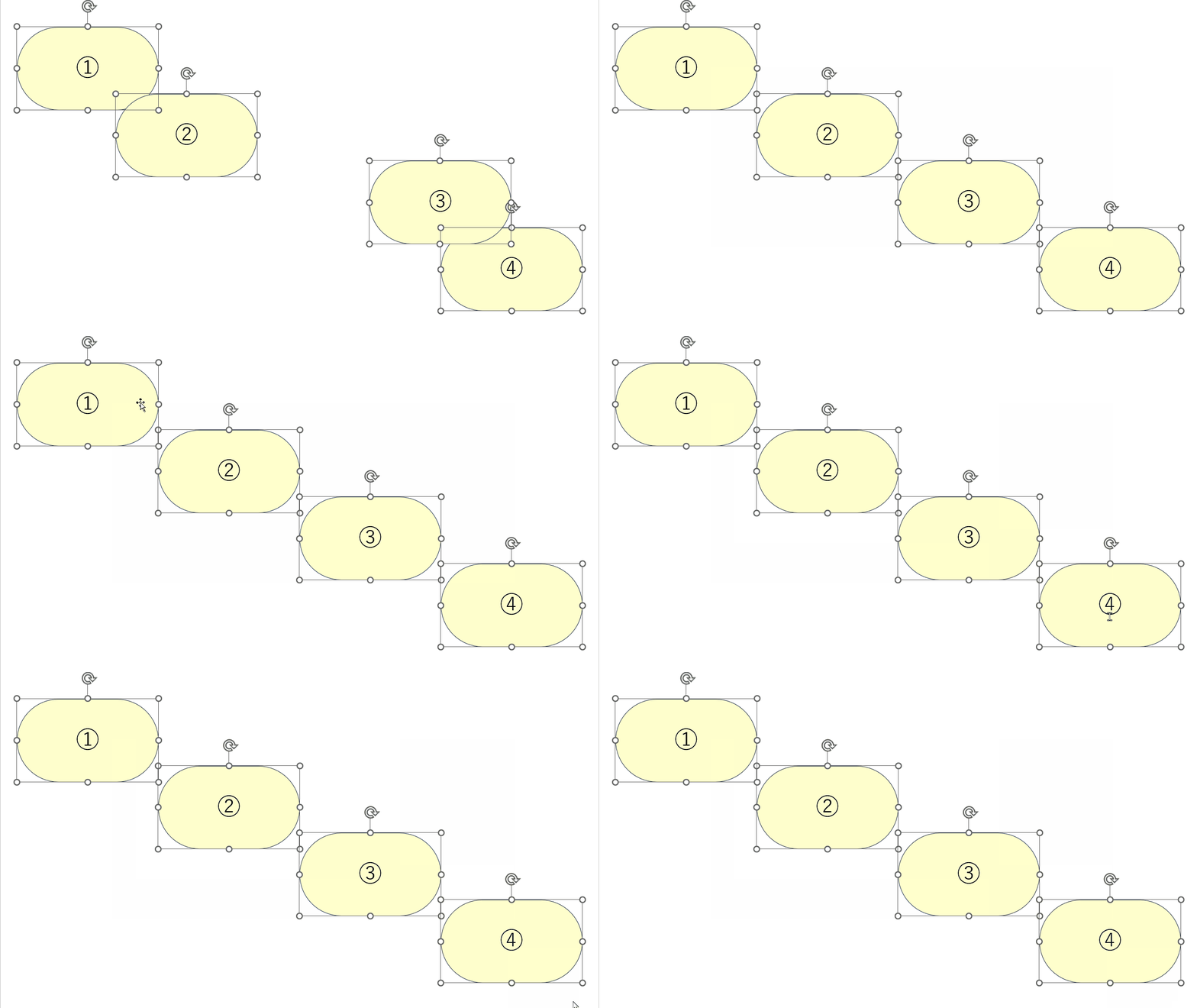
Distribute Vertically
Align the selected shapes evenly vertically.
Although this is the same as PowerPoint’s default feature, it is highly frequently used, so we have made it available in PowerUpKit as well.
By using PowerUpKit’s shortcut registration feature, you can call it up with easier-to-remember shortcuts than those in Quick Access!
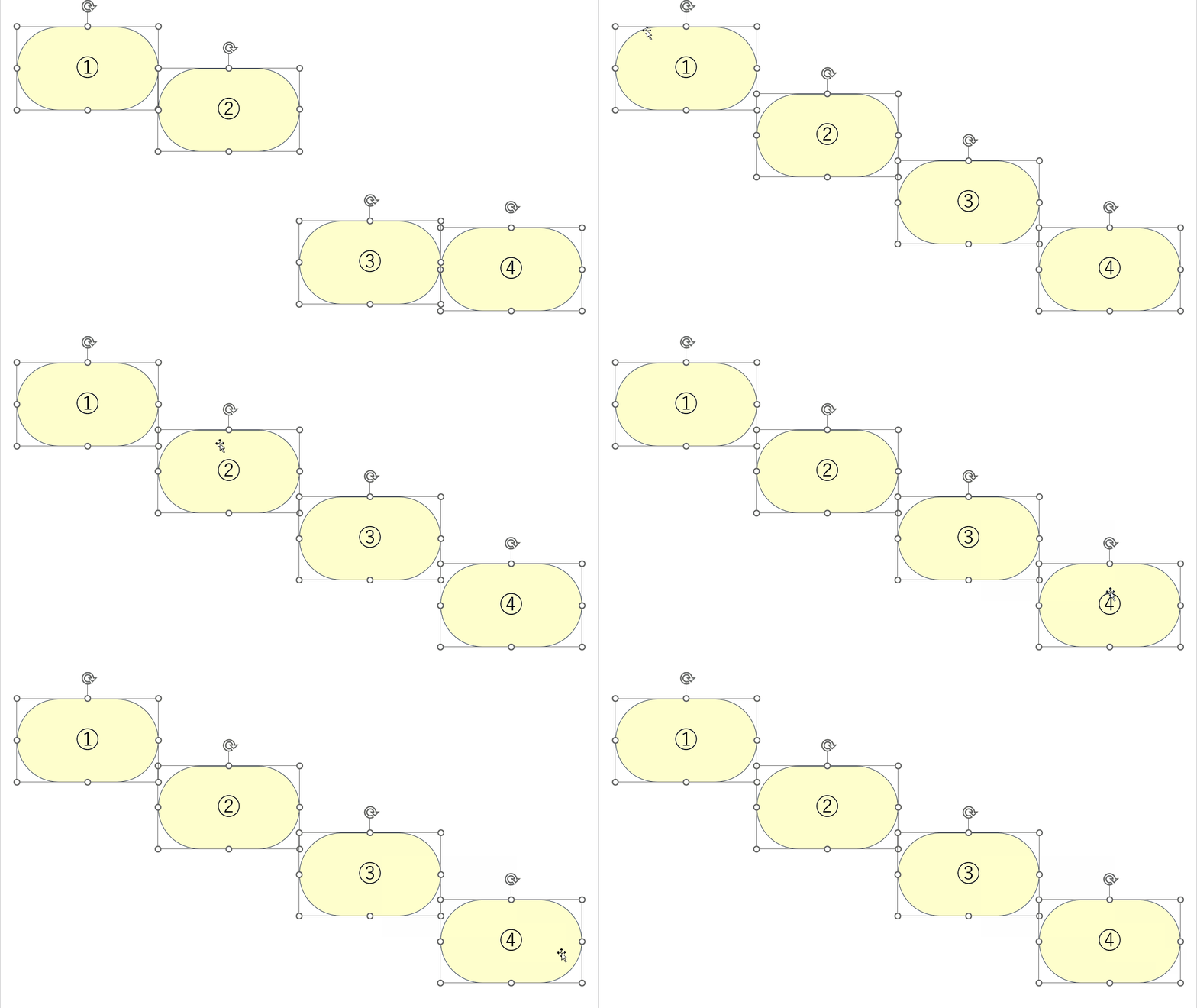
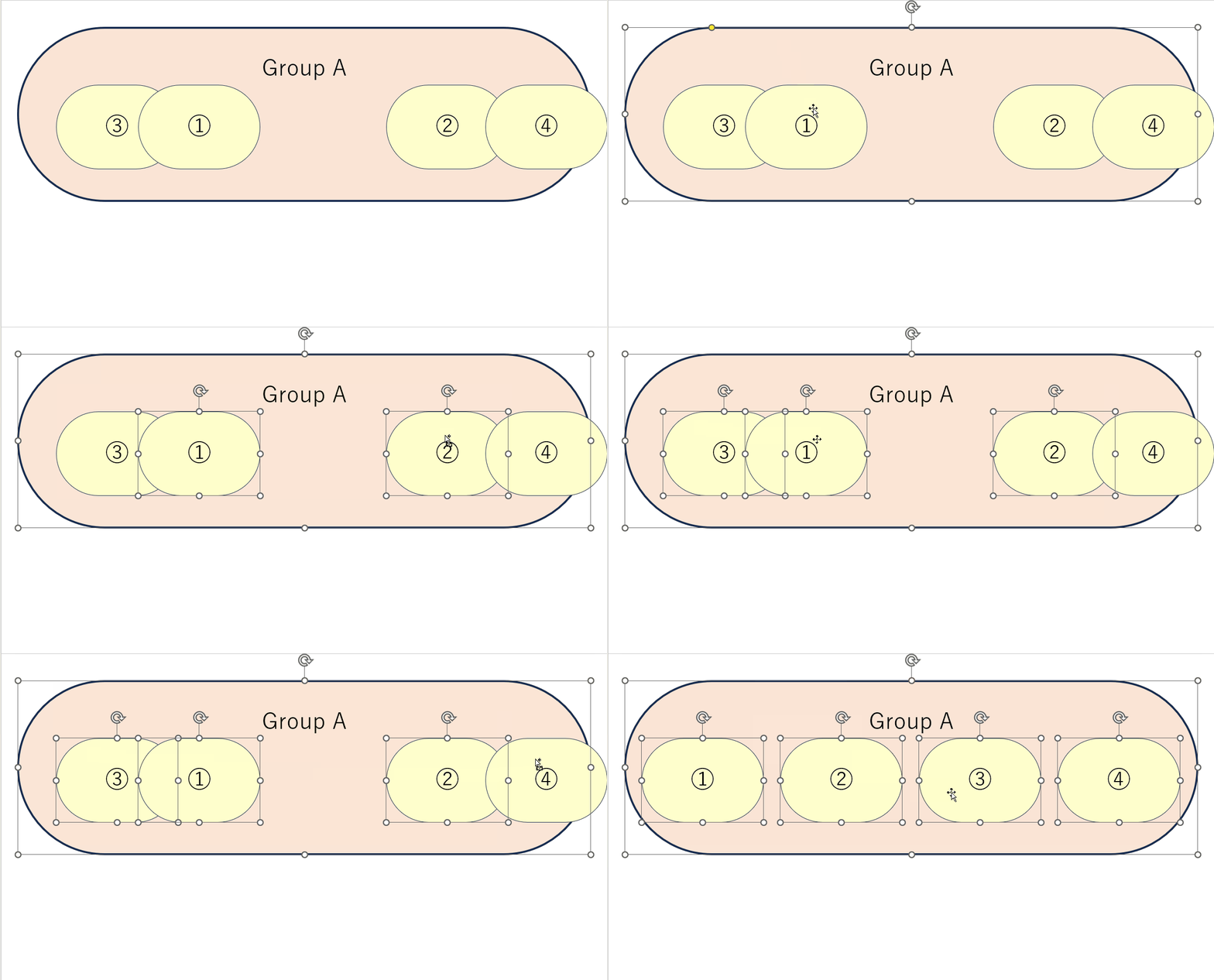
Allocate Horizontally
Align subsequent Shapes horizontally based on the width of the initially selected Shape.
Details are available here.
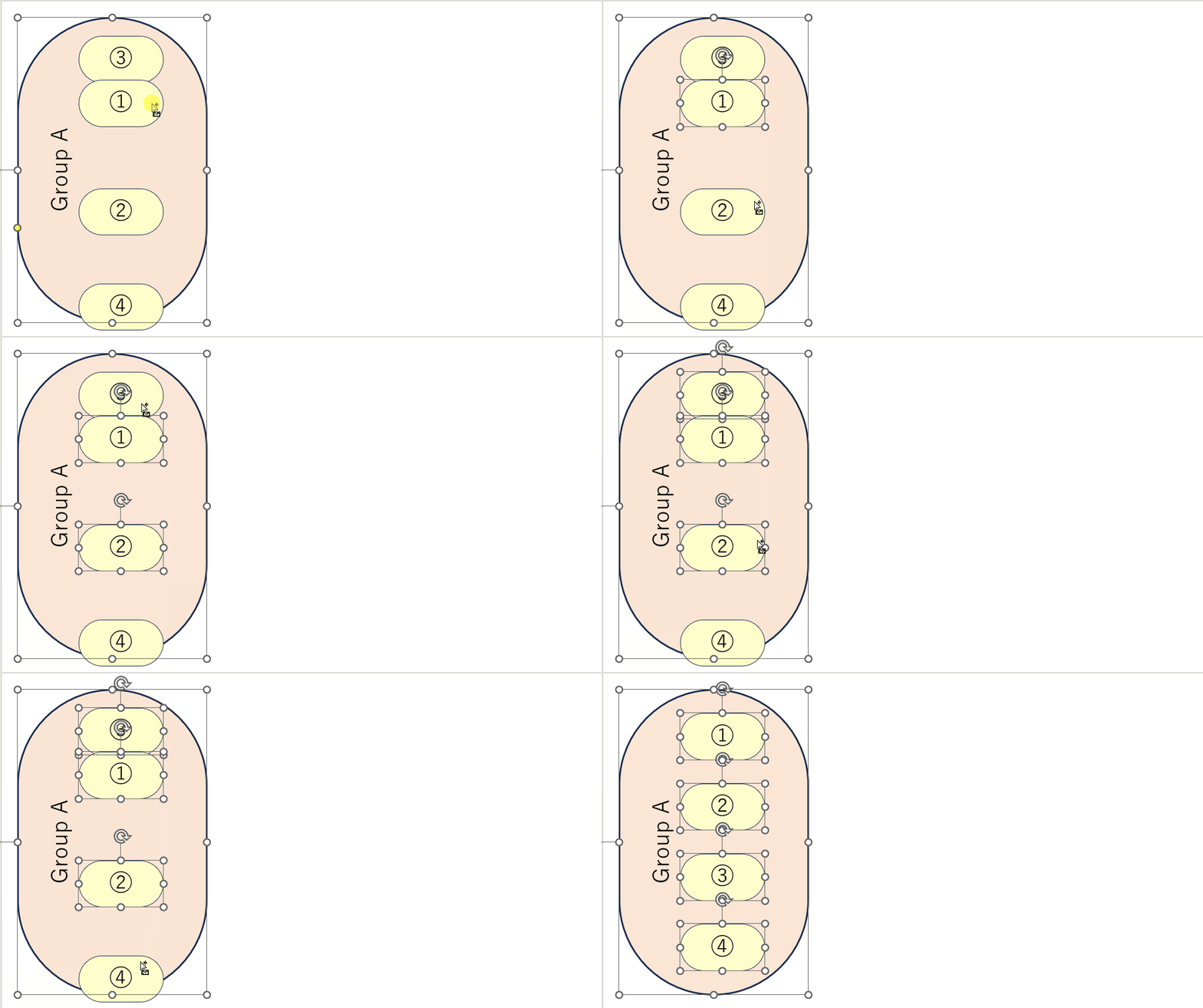
Allocate Vertically
Align subsequent Shapes vertically based on the height of the initially selected Shape.
Details are available here.

Positions Sizes Copy
Copy the Position and Size of the selected shape to the clipboard.

Positions Sizes Paste
Reflect the Position and Size copied to the clipboard with PositionsSizesCopy on the currently selected shape.

Bring To Front
Move the selected shapes to the front in the order they were selected.
Although this is the same as PowerPoint’s default feature, it is highly frequently used, so we have made it available in PowerUpKit as well.
By using PowerUpKit’s shortcut registration feature, you can call it up with easier-to-remember shortcuts than those in Quick Access!
Send To Back
Move the selected shapes to the back in the order they were selected.
Although this is the same as PowerPoint’s default feature, it is highly frequently used, so we have made it available in PowerUpKit as well.
By using PowerUpKit’s shortcut registration feature, you can call it up with easier-to-remember shortcuts than those in Quick Access!
Same Height
Aligns the height of all selected shapes to match the height of the initially selected shape.
Details are available here.
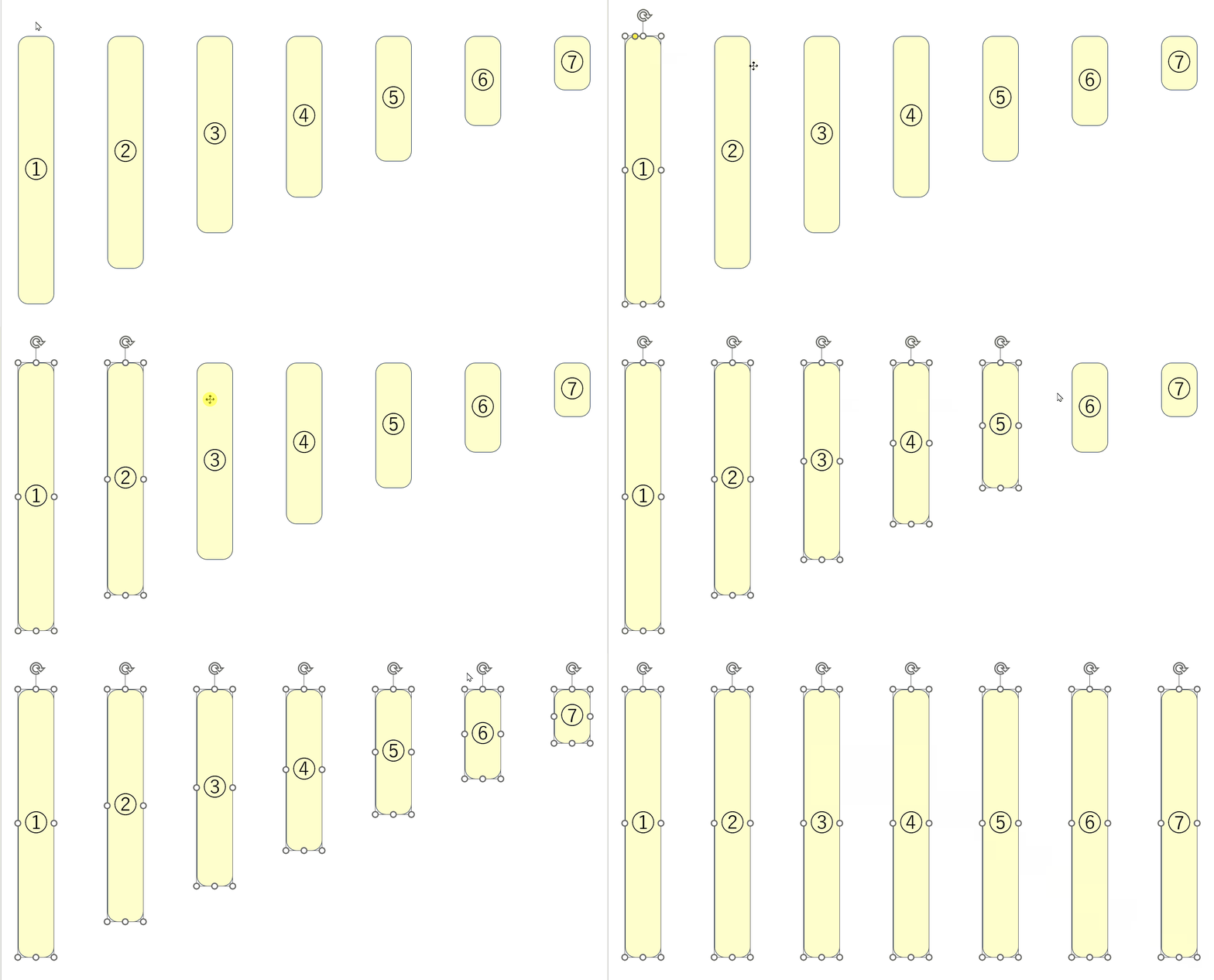
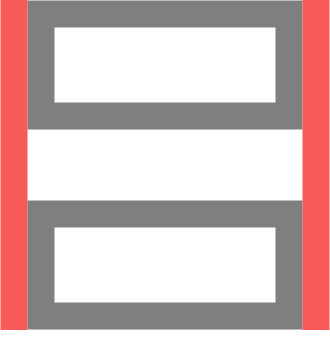
Same Width
Aligns the width of all selected shapes to match the height of the initially selected shape.
Details are available here.
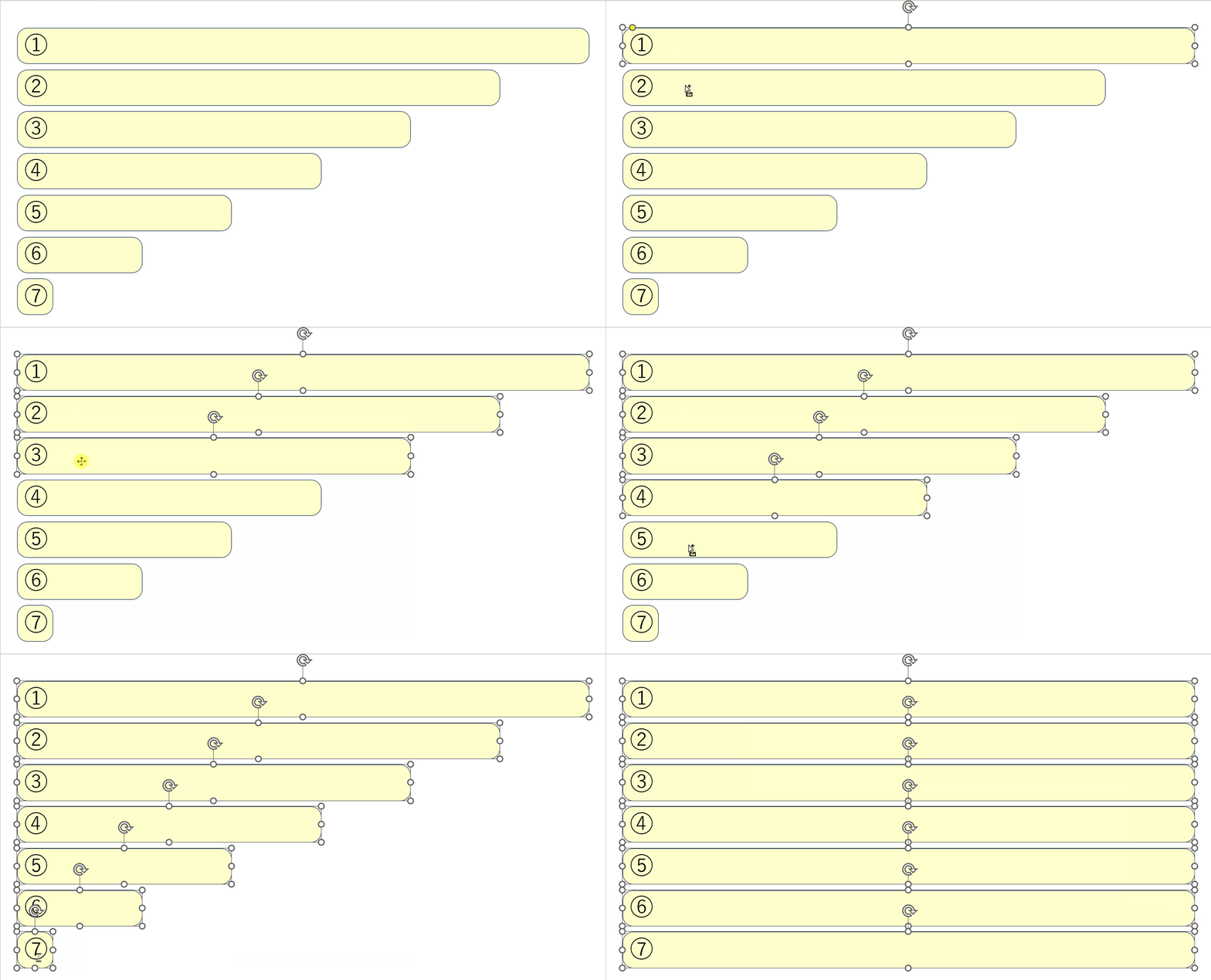
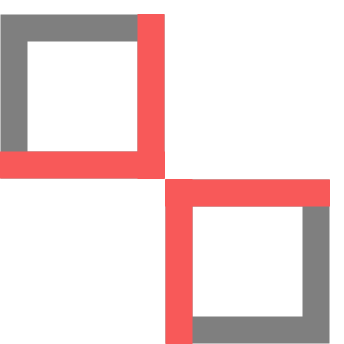
Same Size
Aligns the height and width of all selected shapes to match the height of the initially selected shape.
Details are available here.
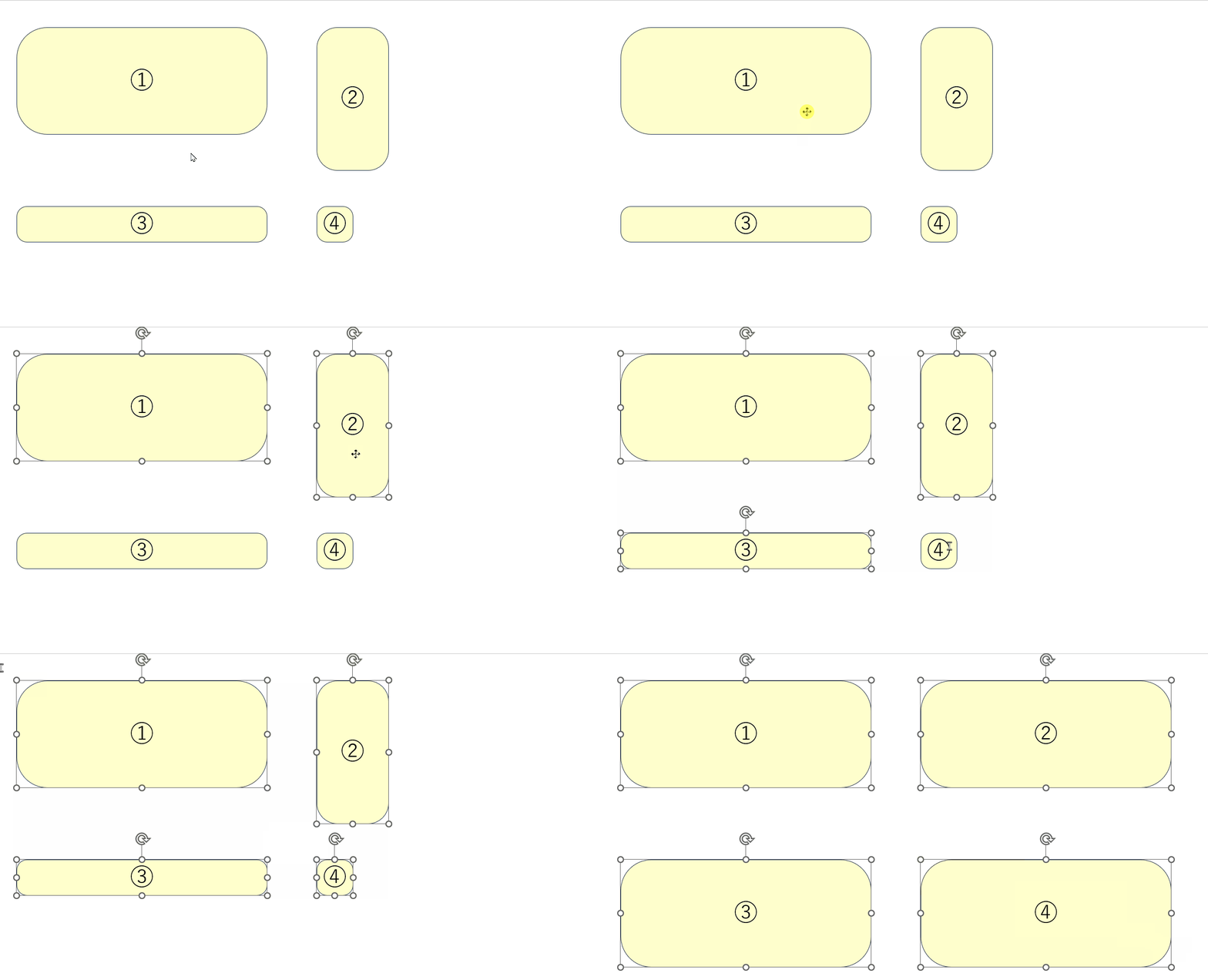
Same Adjustment
Aligns the positions of adjustments for all selected shapes to match those of the initially selected shape.
Details are available here.

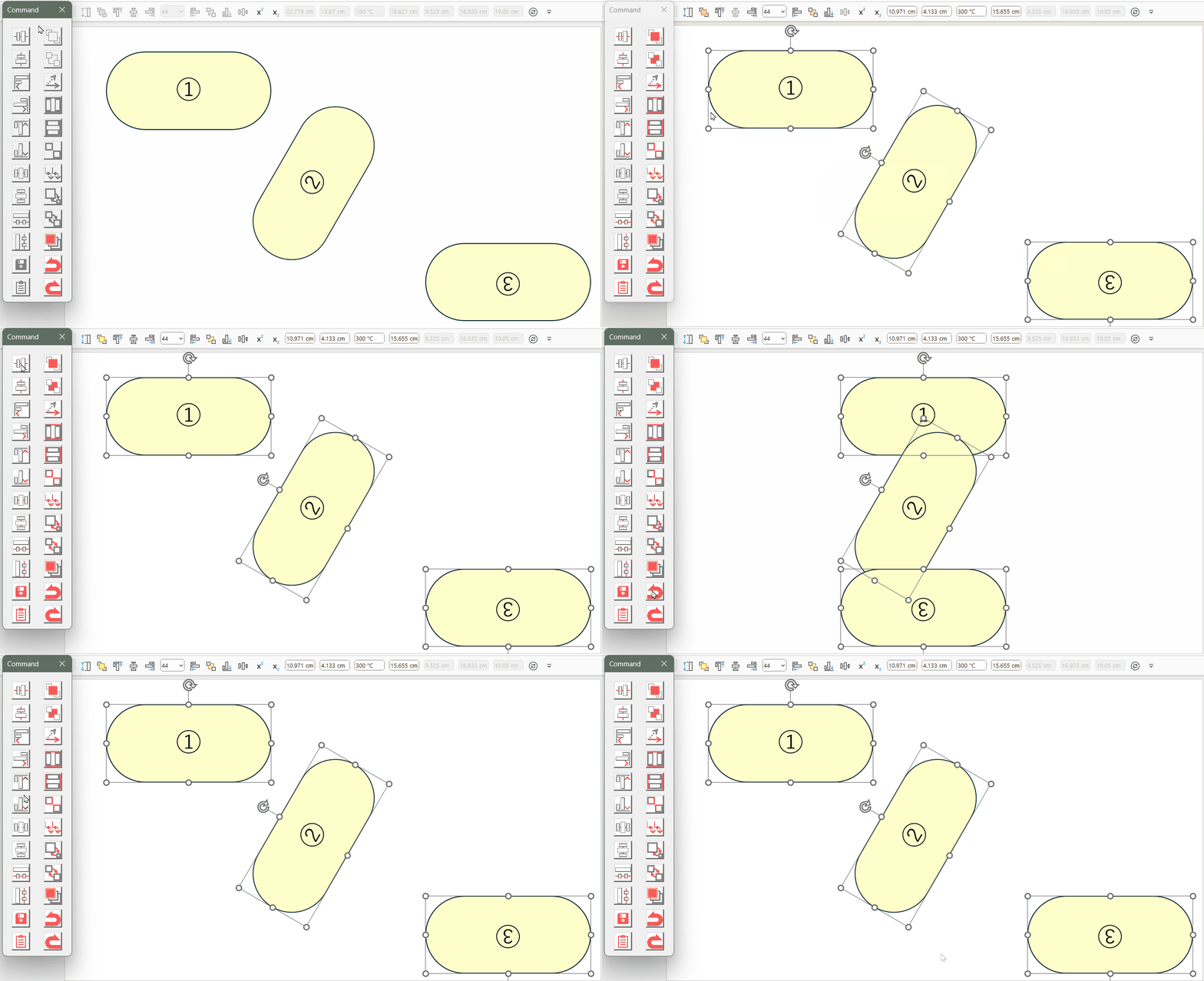
Circulate Size And Position
Swap the size and position of shapes in the order they were selected.
Details are available here.
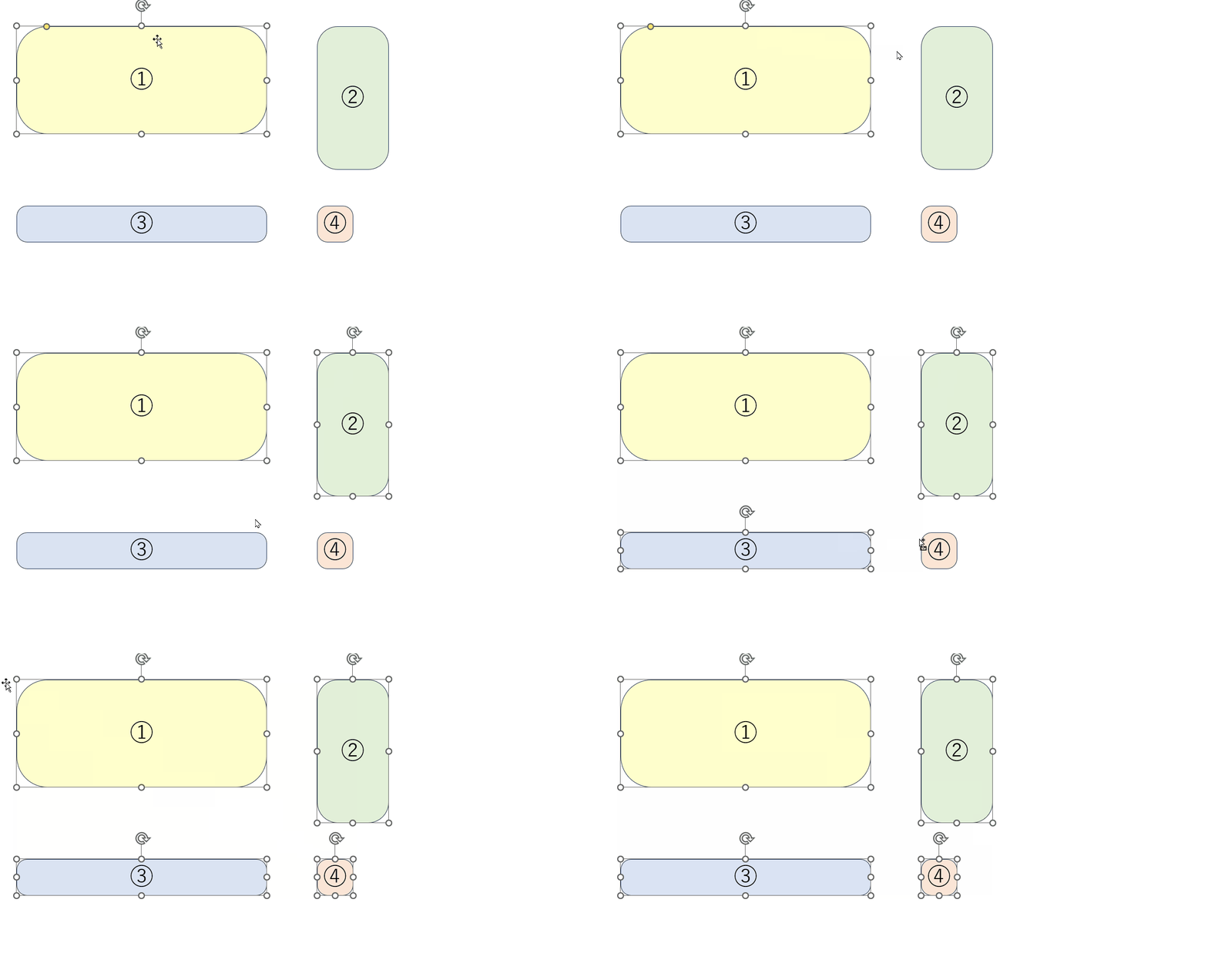
Circulate Position
Swap the position of shapes in the order they were selected.
Details are available here.
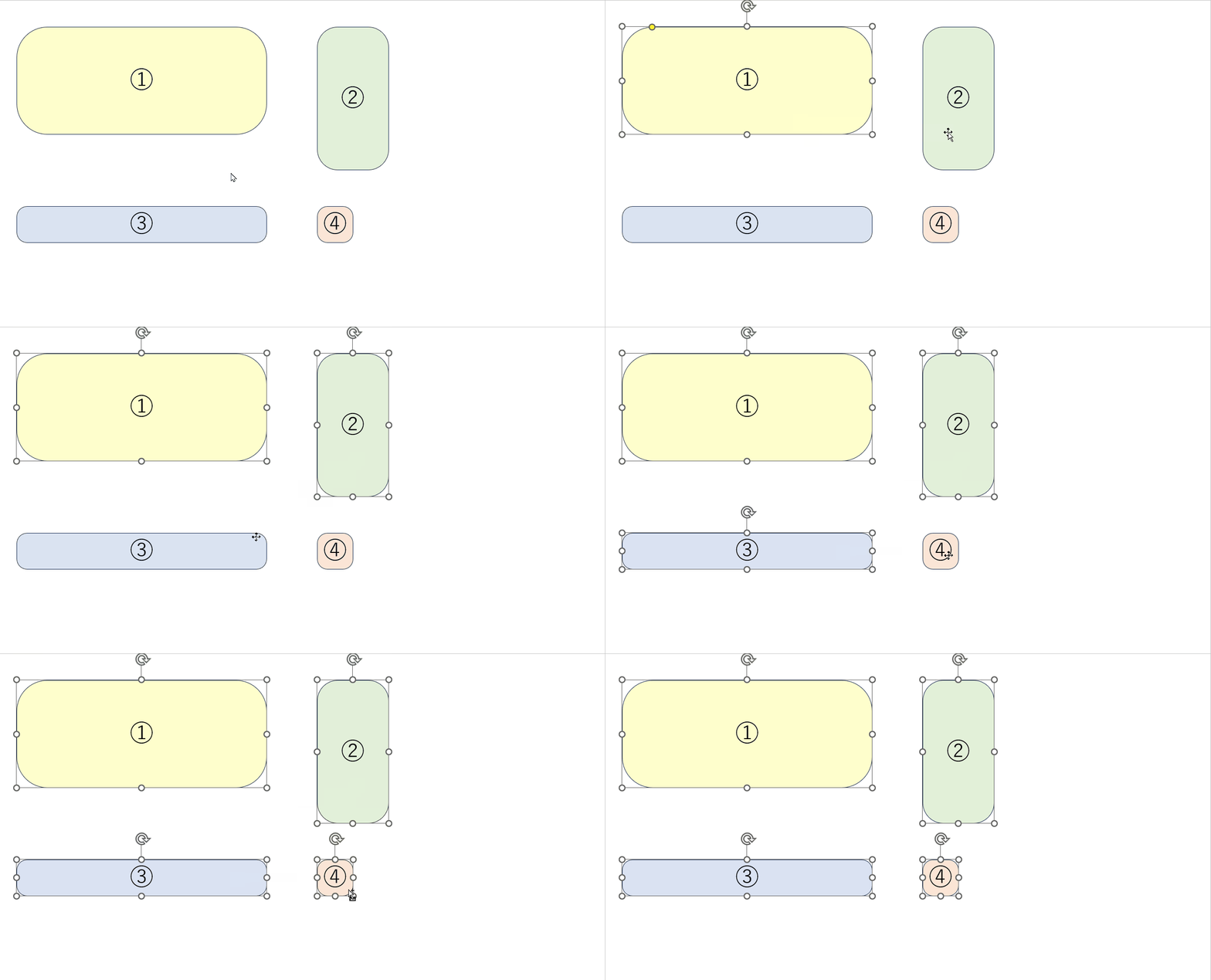

Sort Layer
Display Slide shapes from the upper left in order of selection.
Sorting makes shapes easier to select with the Tab key.

Command Console
Display Slide shapes from the upper left in order of selection.
Sorting makes shapes easier to select with the Tab key.
Details are available here.
Position and Size
View and modify position and size.
Left Position
Display the left position of the selected shape up to the third decimal place.
Changing the displayed value will modify the left position of the selected shapes.
Right Position
Display the right position of the selected shape up to the third decimal place.
Changing the displayed value will modify the right position of the selected shapes.
Top Position
Display the top position of the selected shape up to the third decimal place.
Changing the displayed value will modify the top position of the selected shapes.
Bottom Position
Display the bottom position of the selected shape up to the third decimal place.
Changing the displayed value will modify the bottom position of the selected shapes.
Height
Display the height of the selected shape up to the third decimal place.
Changing the displayed value will modify the height of the selected shapes.

Width
Display the width of the selected shape up to the third decimal place.
Changing the displayed value will modify the width of the selected shapes.
Middle Position
Display the vertical center position of the selected shape up to the third decimal place.
Changing the displayed value will modify the vertical center of the selected shapes.
Center Position
Display the middle center position of the selected shape up to the third decimal place.
Changing the displayed value will modify the middle center of the selected shapes.
Rotation
Display the degrees of rotation of the selected shape up to the third decimal place.
Changing the displayed value will modify the degree of the selected shapes.
Visual Height
Display the apparent height of the selected shape up to the third decimal place.
The value cannot be changed.
Visual Width
Display the apparent width of the selected shape up to the third decimal place.
The value cannot be changed.

Fit
Display whether the selected shape is automatically adjusted to fit the text.
Changing the displayed value from the dropdown will change the text auto-fit of the selected shape.
Text Frame
View and modify the margins of the text frame within the shape, as well as the text wrapping.

Left Margin
Displays the left margin of the text of the selected shape up to the third decimal place. Changing the displayed value will modify the left margin of the text of the selected shape.

Right Margin
Displays the right margin of the text of the selected shape up to the third decimal place.
Changing the displayed value will modify the right margin of the text of the selected shape.
Top Margin
Displays the top margin of the text of the selected shape up to the third decimal place.
Changing the displayed value will modify the top margin of the text of the selected shape.

Bottom Margin
Displays the bottom margin of the text of the selected shape up to the third decimal place.
Changing the displayed value will modify the bottom margin of the text of the selected shape.

Wrap Text
If the text of the selected shape wraps, the check will be ON.
Changing the ON/OFF of the check will change the text wrapping of the selected shape.
Span
View and modify the spacing between shapes
Horizontal Span
Displays the horizontal spacing of the selected shapes up to the third decimal place. Changing the displayed value will modify the horizontal spacing of the selected shapes.

Vertical Span
Displays the vertical spacing of the selected shapes up to the third decimal place.
Changing the displayed value will modify the vertical spacing of the selected shapes.
Setting
View and modify the settings in the P Shape tab
Visible Arrow
You can view and modify the settings of the P Shape tab.

Number Interval
Toggles the visibility of arrows for increasing/decreasing numbers.
Line Weight
Allows you to change the number to be incremented or decremented when clicking on the arrow.
Comments