

PowerUpKit offers two types of add-ins: VBA add-ins and VSTO add-ins.
Here, we will explain the installation method.
Step 1: Unzip
Please unzip the downloaded zip file from here.
VBA Set up
Step 1: Please save “PowerUpKit_v1_x_x.ppam” and “PowerUpKit_Favorite.pptx” from the extracted VBA folder somewhere on your computer.
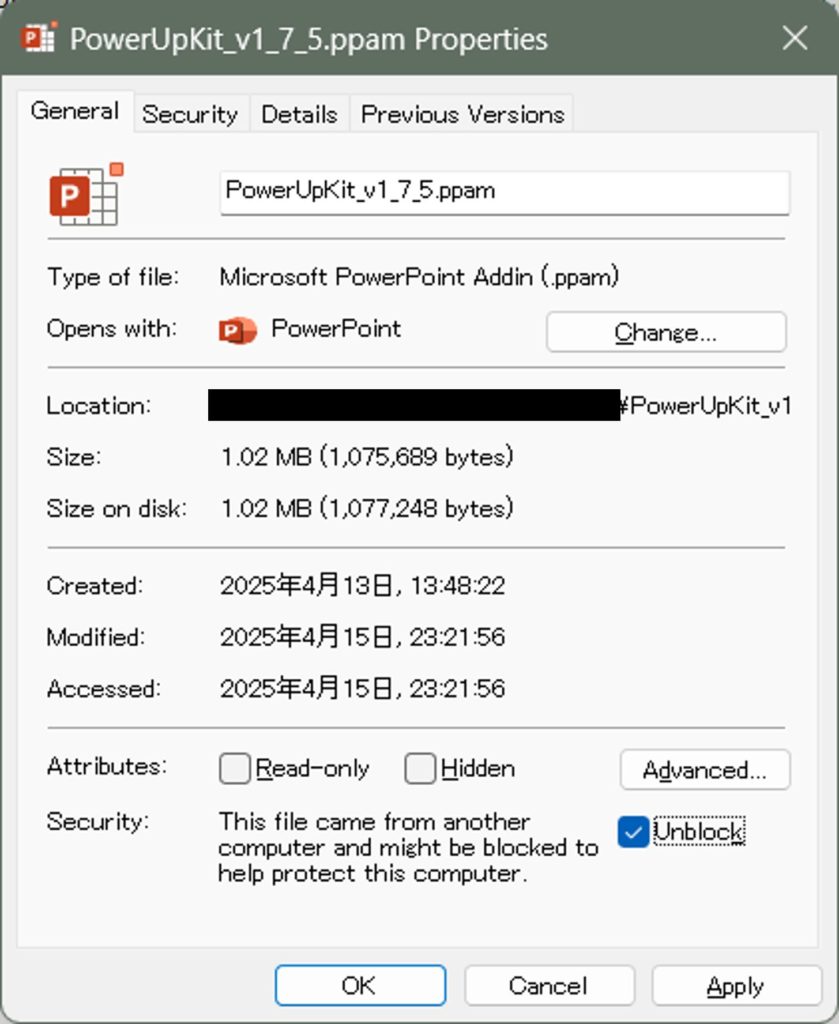
Please open the properties of the saved .ppam file, go to the General tab, and check the Unblock box at the bottom right.
Step 2: Launch PowerPoint.
If PowerPoint is already running, please close it and then launch PowerPoint again.
Step 3: (This step is unnecessary if the “Developer” tab is already displayed on PowerPoint.)
Select the “File” tab in PowerPoint, then click on “Options” at the bottom left of the screen.
In the PowerPoint Options window, select “Customize Ribbon” from the left pane, and then check the “Developer” checkbox under the “Main Tabs” on the right side of the screen.
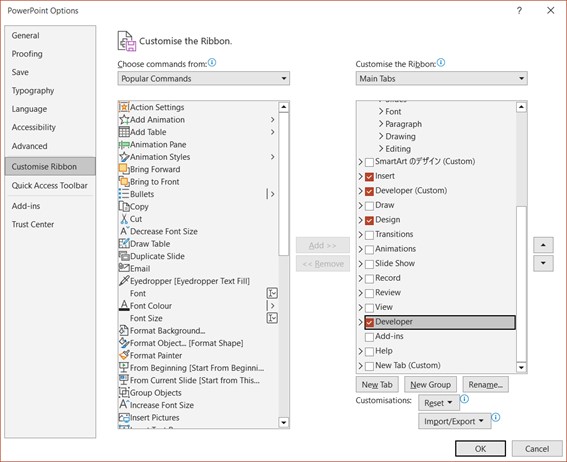
After checking the checkbox, click the “OK” button at the bottom right of the screen.
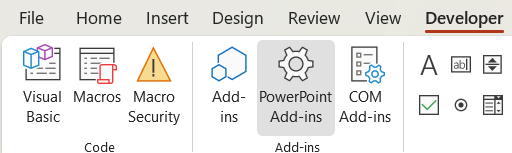
Statep 4: Select the “Developer” tab from the top of PowerPoint, then click on “PowerPoint Add-ins” (the gear icon).
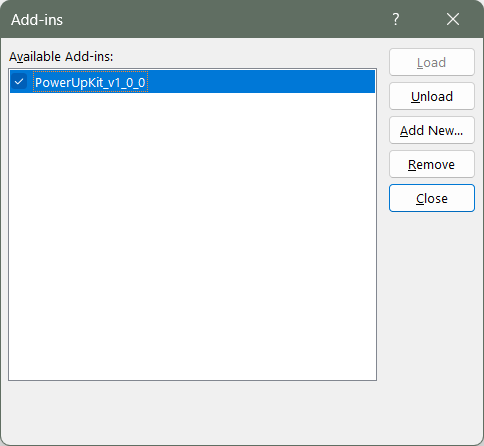
Add-ins window appears, click on the “Add New…” button, then select the “PowerUpKit_v1_x_x.ppam” file saved in Step 1.
If the “Microsoft PowerPoint Security Notice” screen appears, click the “Enable” button.
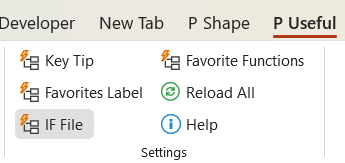
Step 5: Select the “P Useful” tab from the top of the PowerPoint screen, then click on the IF File button.
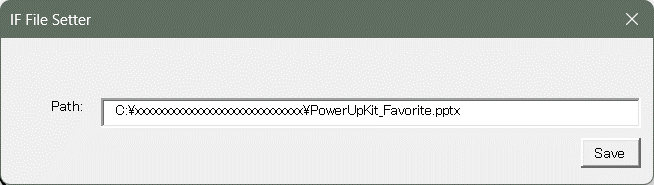
Step 6: Enter the full path of the “PowerUpKit_Favorite.pptx” file saved in step 1 into the window, then click the Save button.
VSTO Setup
Step 1: Please save “PukSetup.exe” and “PukSetup.msi” from the extracted VSTO folder somewhere on your computer.
Step 2: Please run PukSetup.exe.
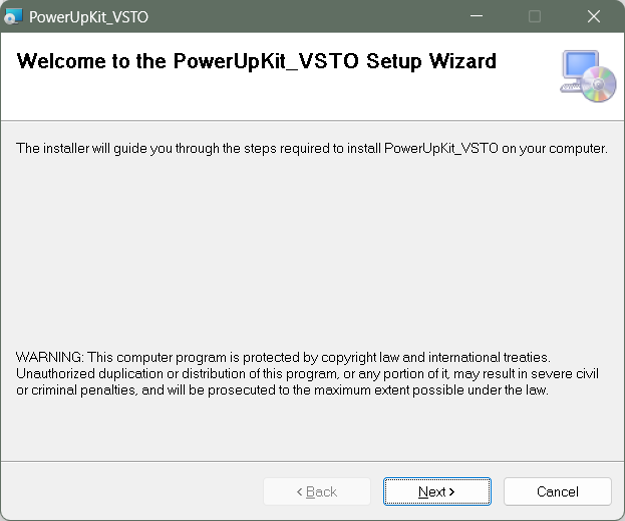
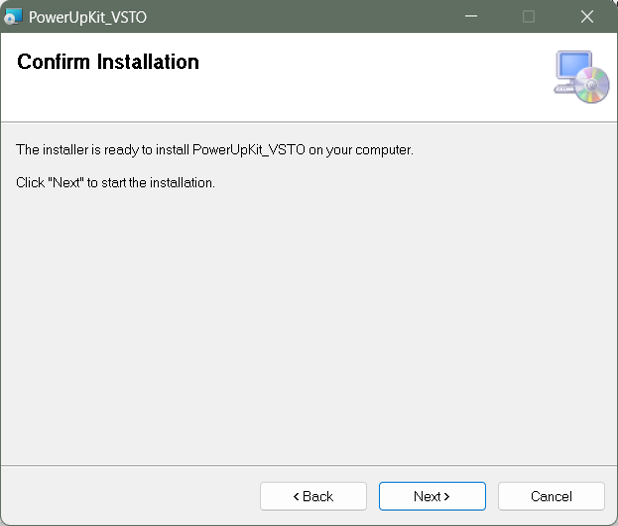
Step 3: When the screen appears, click the Next button.
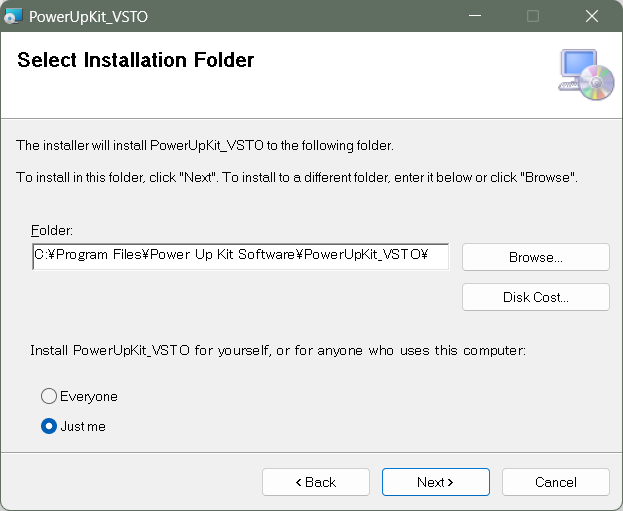
Step 4: Select the installation location and the installation scope (Everyone or Just me), then click the Next button.
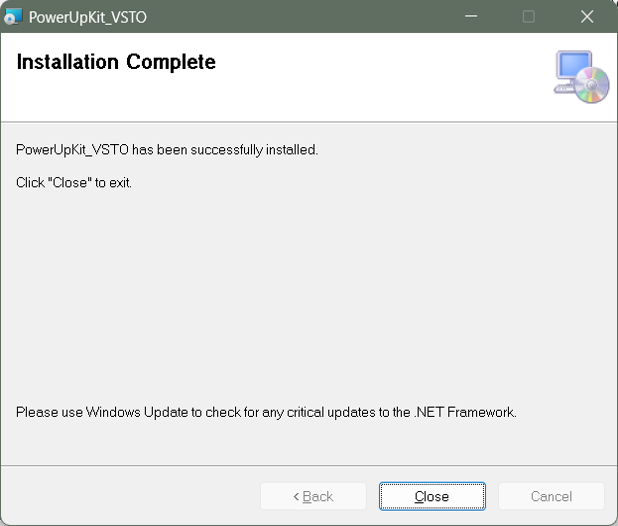
Step 5: After the installation is complete, click the Next button and Close button to close the screen.
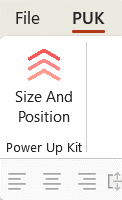
Step 6: When you restart PowerPoint, select “PUK” from the top tab.
Comments