
P Shape

P Shape

Circulate Size And Position, Circulate Position

After finishing creating a slide, there are often many times when you want to rearrange the positions of shapes. In such cases, you would typically use the mouse to rearrange shapes. With Power Up Kit, you can simply click on the icon without touching the mouse.

P Shape

Same Height, Same Width, Same Size

PowerUpKit offers many convenient features. Among them, Same Height, Same Width, and Same Size are functions you may want to use every day. As the names suggest, simply clicking the icon allows you to make the height or width, or both, of the shapes the same.
P Shape

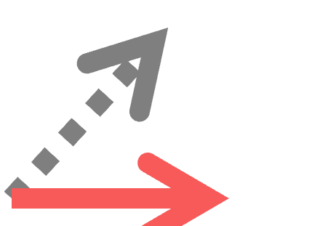
Rectify

This feature straightens the selected shapes. This feature is particularly effective for arrows and lines and is essential for creating a neat PowerPoint presentation.
P Shape

Allocate Vertically

This feature aligns subsequent shapes vertically based on the height of the initially selected shape. Seeing is believing. Let's show you how to use it right away!
P Shape

Allocate Horizontally

This feature aligns subsequent shapes horizontally based on the width of the initially selected shape.Seeing is believing.Let's show you how to use it right away!
P Shape

Same Adjustment

With Same Adjustment, you can align the positions of adjustments (the orange circles on shapes). When using multiple Arrows, you can also perfectly align the positions of the bends. Additionally, you can make rounded shapes have the same shape.
P Shape

Command Console

This feature overlays a small console on PowerPoint. By clicking on any of the 24 icons in this console, you can call the features necessary for aligning shapes. You can hide the PowerPoint ribbon and work on a larger screen while neatly aligning shapes!
P Shape

Align Bottom

With Align Bottom, you can neatly align the bottom positions of multiple shapes! In PowerPoint's default feature, shapes are aligned to the bottom position among the selected shapes.
P Shape

Align Top

With Align Top, you can neatly align the top positions of multiple shapes! In PowerPoint's default feature, shapes are aligned to the top position among the selected shapes.
P Shape

Align Right

With Align Right, you can neatly align the right positions of multiple shapes! In PowerPoint's default feature aligns shapes to the rightmost position among the selected shapes, this feature allows you to align positions based on the initially selected shape!
Copied title and URL