



Let me introduce you to the Insert Shape Align feature in the P Useful tab.
When you want to overlay shapes on a PowerPoint table, you might have experienced difficulties with sizing and alignment.
With this feature, you can adjust the shape to fit perfectly into the cells of the table!
How to Use
- Select a table in your PowerPoint presentation.
- Click on the Insert Shape Align icon in the P Func tab. This will add a rectangle around the selected table.
- The added rectangle can be used for sizing and alignment.
Please refer to the following GIF image:
After selecting the table, executing Insert Shape Align added rectangles around the table with the width and height of the cells.
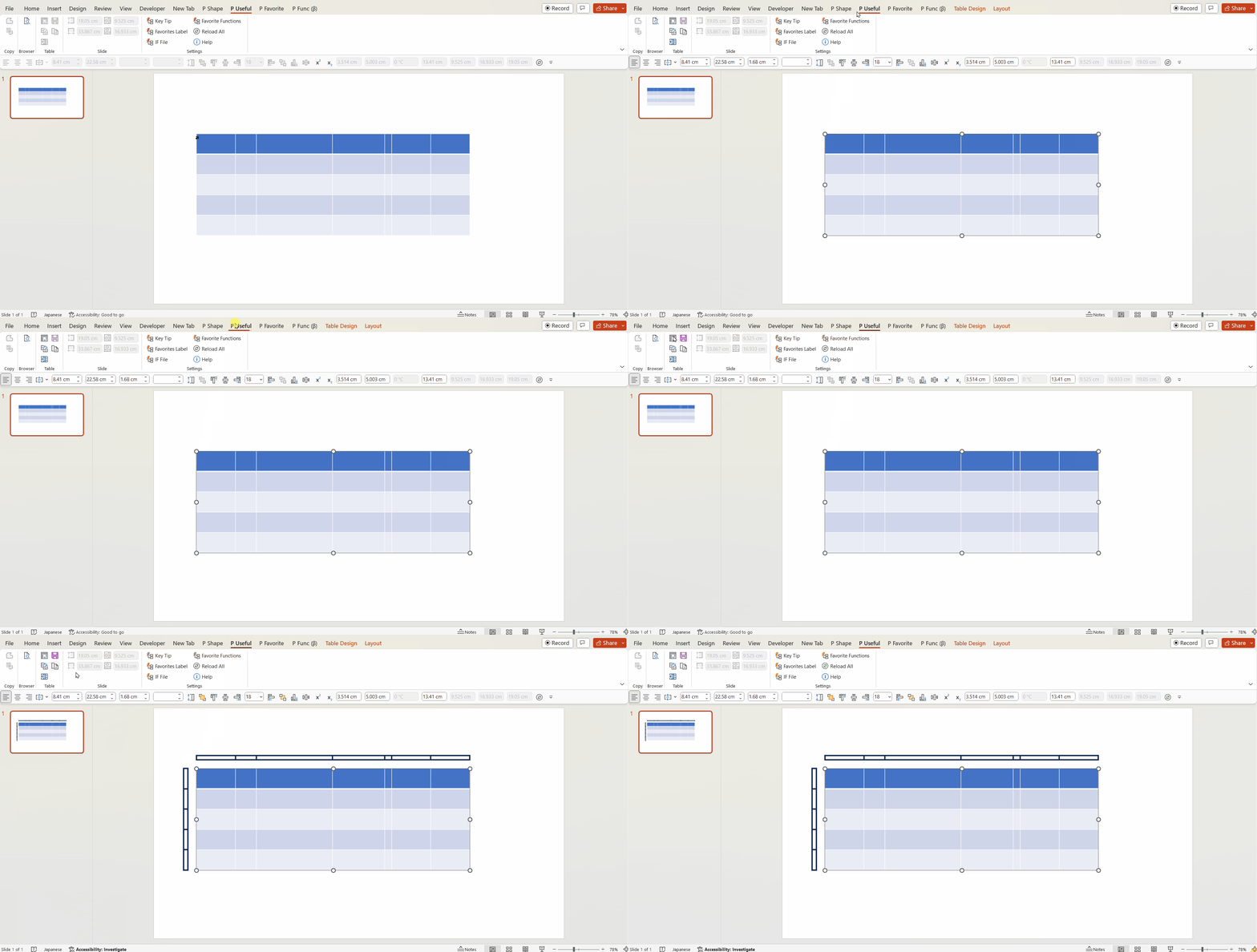
You can then adjust the shapes to fit the size and position of the cells.
Here, we adjust the size and position of the shapes to match the cells in the table.
You can see the presence of smart guides (red dashed lines) thanks to the surrounding rectangles.

While this feature may not be used frequently, it proves to be indispensable in certain situations!
Please make the most of it.
You can download the Power Up Kit from here.


Comments