



Let me introduce you to the “Paste Patch” feature in the P Useful tab.
Have you ever been in a video conference and had a client say, “The shape in the top left”?
You might have thought, “Which shape? There are so many…”
With the proliferation of remote work, it’s become more common to project documents on screen rather than printing them on paper.
In today’s world, where conversations that used to be accompanied by gestures have become more challenging, this feature is highly recommended.
How to Use
- Select a single Shape in the PowerPoint presentation to be copied.
- Select the destination Shape where the Shape selected in step 1 will be pasted.
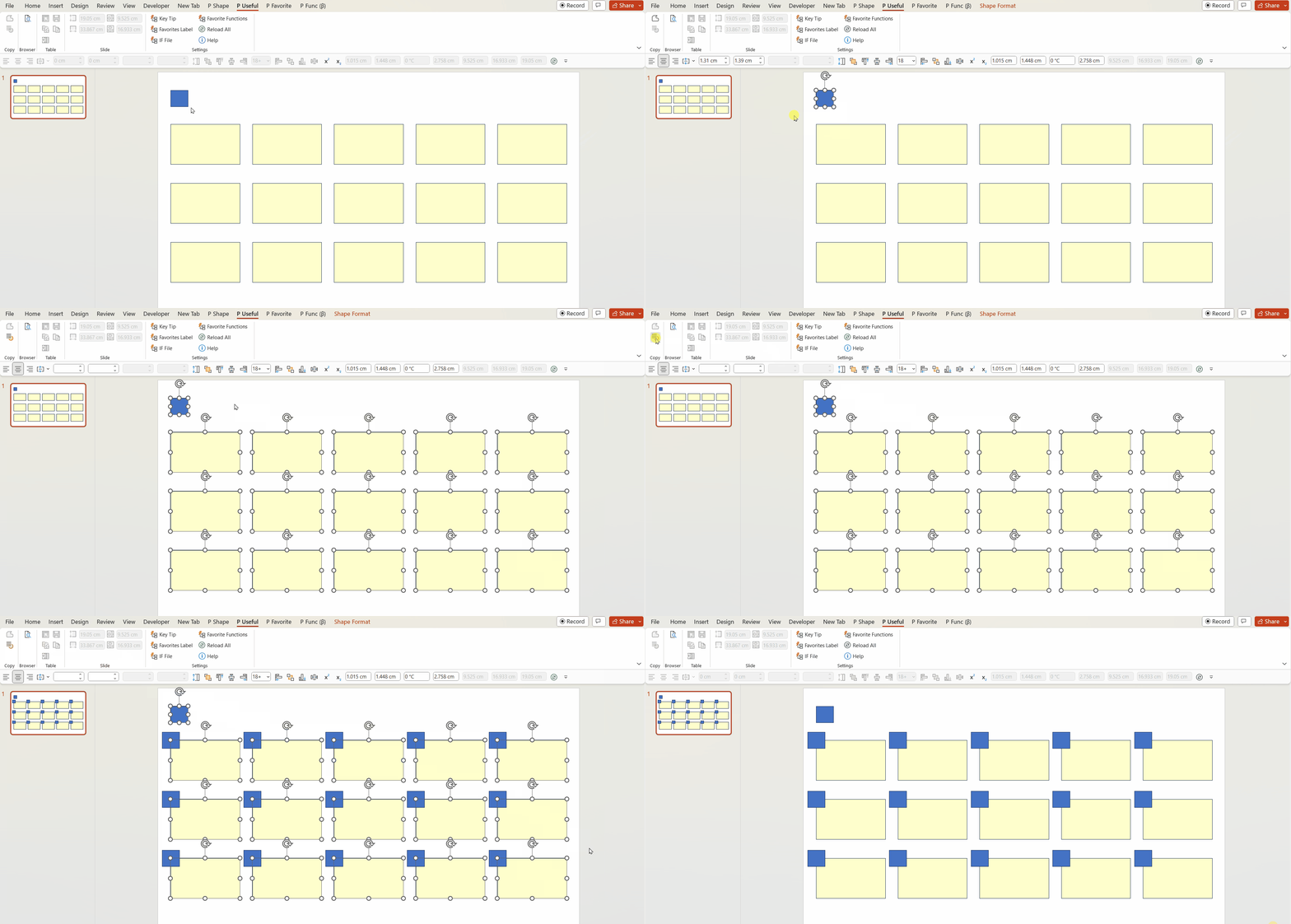
- By clicking the Paste Patch icon in the P Func tab, you can paste the Shape selected in step 1 to the top-left corner of the Shape selected in step 2.
Please refer to the following GIF image:
After selecting the blue Shape in the top-left corner, select the remaining yellow Shapes. Then, executing Paste Patch will copy the blue Shape to the top-left corner of the yellow Shape!
You can do as you like.
For example, simply numbering the points can greatly enhance the quality of communication.
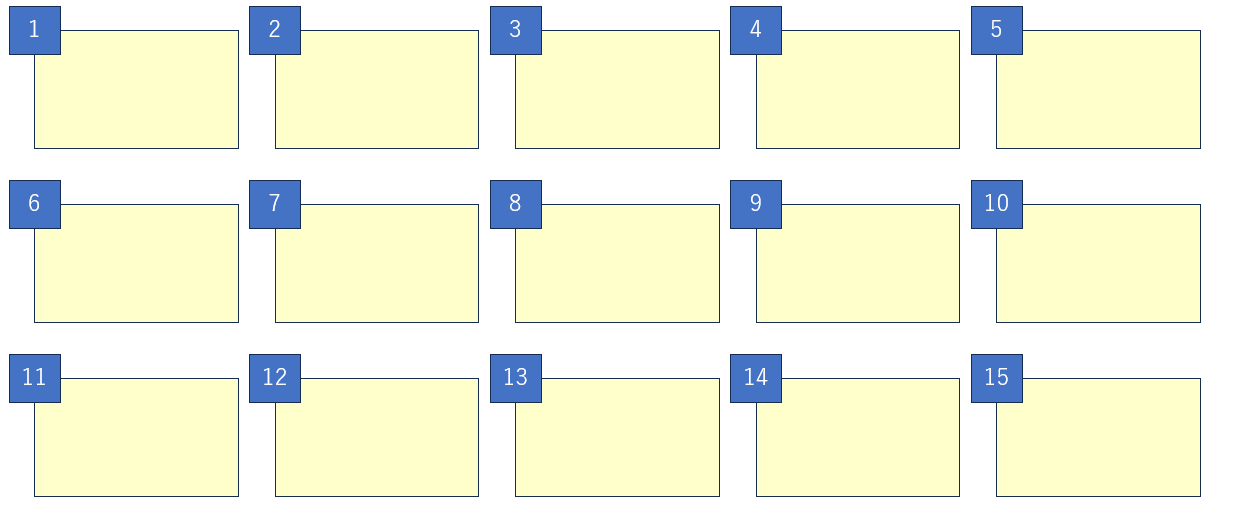
Of course, communication is possible even without such numbering.
However, once you start using it, it becomes an indispensable feature.
Especially when creating flowcharts or system diagrams, it becomes a powerful tool!
Please give it a try!
You can download Power Up Kit from here.


Comments