



Let me introduce you to the Align Top feature on the P Shape tab.
With Align Top, you can neatly align the top positions of multiple shapes!
In PowerPoint’s default feature, shapes are aligned to the top position among the selected shapes.
How to Use
- Select multiple shapes with adjustments.
- Clicking the Same Adjustment icon will align their adjustment positions.
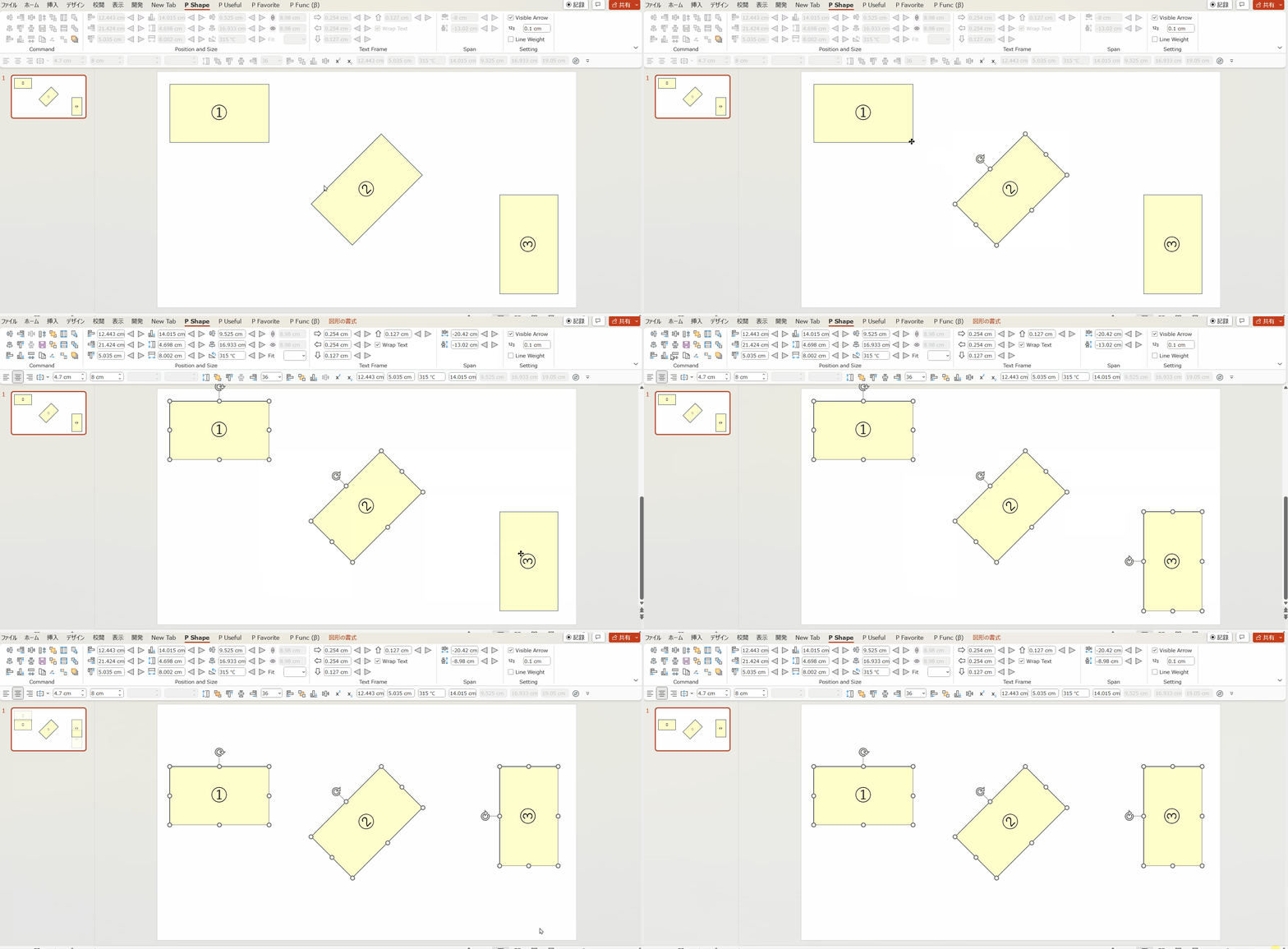
Please refer to the GIF image below.
After selecting the shape labeled ② in the middle, select shapes ① and ③.
Then, executing Align Top will align the top positions of all shapes based on shape ②!
This is a highly frequently used feature!
Please make the most of it.
You can download the Power Up Kit from here.


Comments