

In the P Func tab, you can call up PowerPoint button functions with your preferred shortcuts.
On this page, the function for text alignment to the left (Align Left) has been set to be called up with the keyboard shortcut ‘al’ (initials of Align Left).
Normally, frequently used functions are registered in the Quick Access Toolbar, but the shortcuts end up being meaningless key configurations (1,2,3,4,5…09) automatically set by PowerPoint. With this feature, you can set shortcuts to keys that are easy to remember or press, allowing for significant time savings!
*Please note the functions of this tab are currently in beta (as of version 1.0.0). Some PowerPoint functions may display error messages even when executed with a button.
How to Use
Step1: Check the ID of a PowerPoint function
Each function in PowerPoint is assigned a unique ID.
First, let’s find out the ID of the function you want to call up with your favorite shortcut.
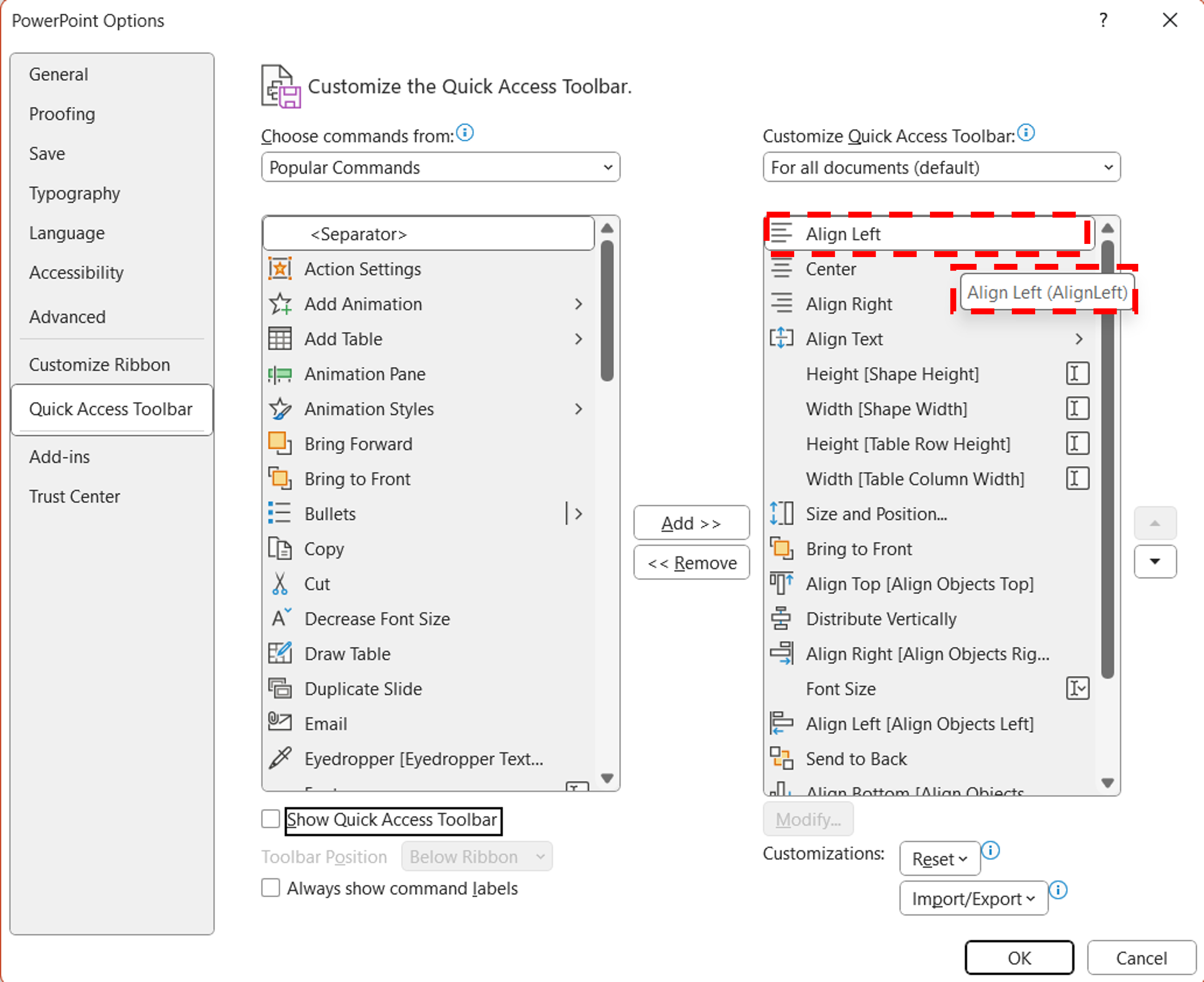
Open PowerPoint and go to File -> Options -> Quick Access Toolbar.
When you hover the mouse cursor over the name of a function, the English ID will be displayed in parentheses after the function’s name.
For example, in the image below, the mouse cursor is hovering over the ‘Align Left’ function.
It is displayed as ‘Align Left (AlignLeft)’, so ‘AlignLeft’ in the parentheses is the ID (indicated by the red dotted line).
Step2: Register the ID
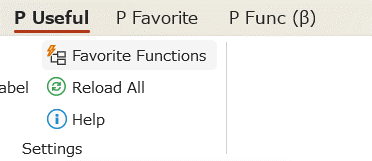
Click the Favorite Functions button displayed on the P Useful tab.
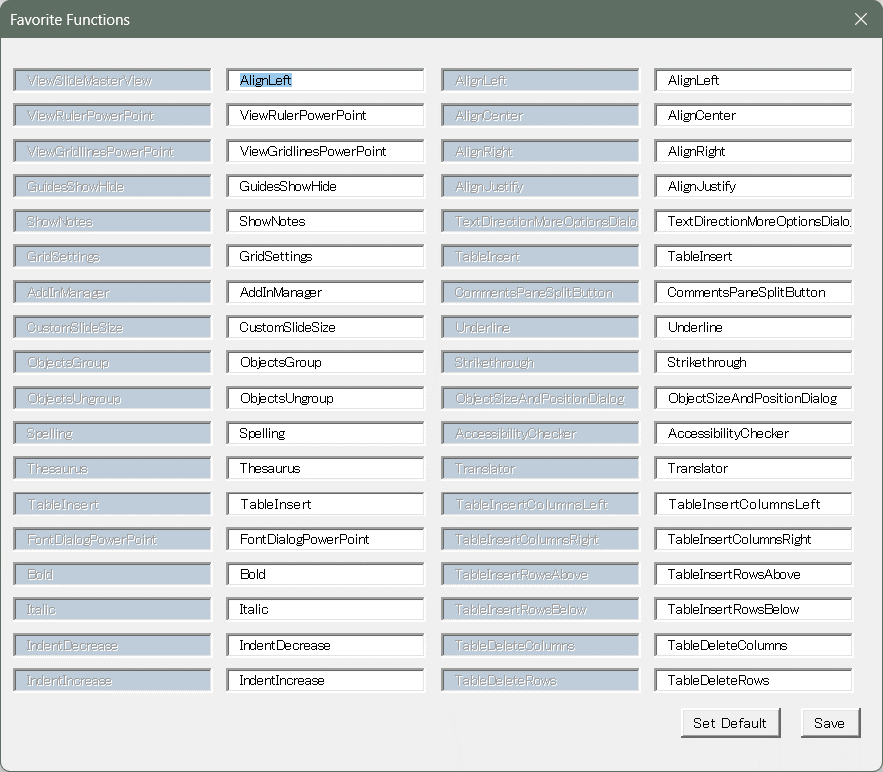
A window will appear; enter the ID confirmed in Step 1 in your preferred location, then click the Save button at the bottom right.
In the image below, the ‘AlignLeft’ ID confirmed in Step 1 is entered in the top-left box.
Step3: Registering Shortcut Keys
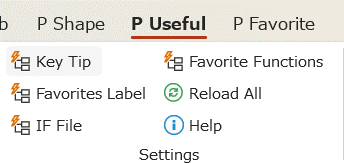
Click the Key Tip button displayed on the P Useful tab.
A window will appear; select the ‘P Func’ tab, enter the desired shortcut in the top-left input field, and click the Save button at the bottom right.
(In the image below, the shortcut ‘al’, taken from the initials of AlignLeft, is entered in the top-left box.)

Step4: Calling a Function with a Shortcut
Call up the function registered with the shortcut set in Step 3.
Press the Alt key, select the P Func (β) tab, and then call up the function registered in Step 2 with the shortcut set in Step 3.
This time, the ‘Align Left’ function has been set to be called up with the keyboard shortcut ‘al’ (initials of Align Left).
The setting process may be cumbersome, but once mastered, it becomes a powerful feature. Please give it a try!
Comments