



Let me introduce you to the Align Center feature of the P Shape tab.
With Align Center, you can neatly align the horizontal centers of multiple shapes!
In PowerPoint’s default feature, aligning the centers causes all shapes to shift, but with this feature, you can align the horizontal centers of the selected shapes based on the initially selected shape!
How to Use
- Select one or more shapes in PowerPoint.
- Click on the Align Center icon in the P Shape tab to align the horizontal centers of the selected shapes based on the initially selected shape.
・The position of the initially selected shape remains unchanged.
・If only one shape is selected, it will be moved to the center of the slide.
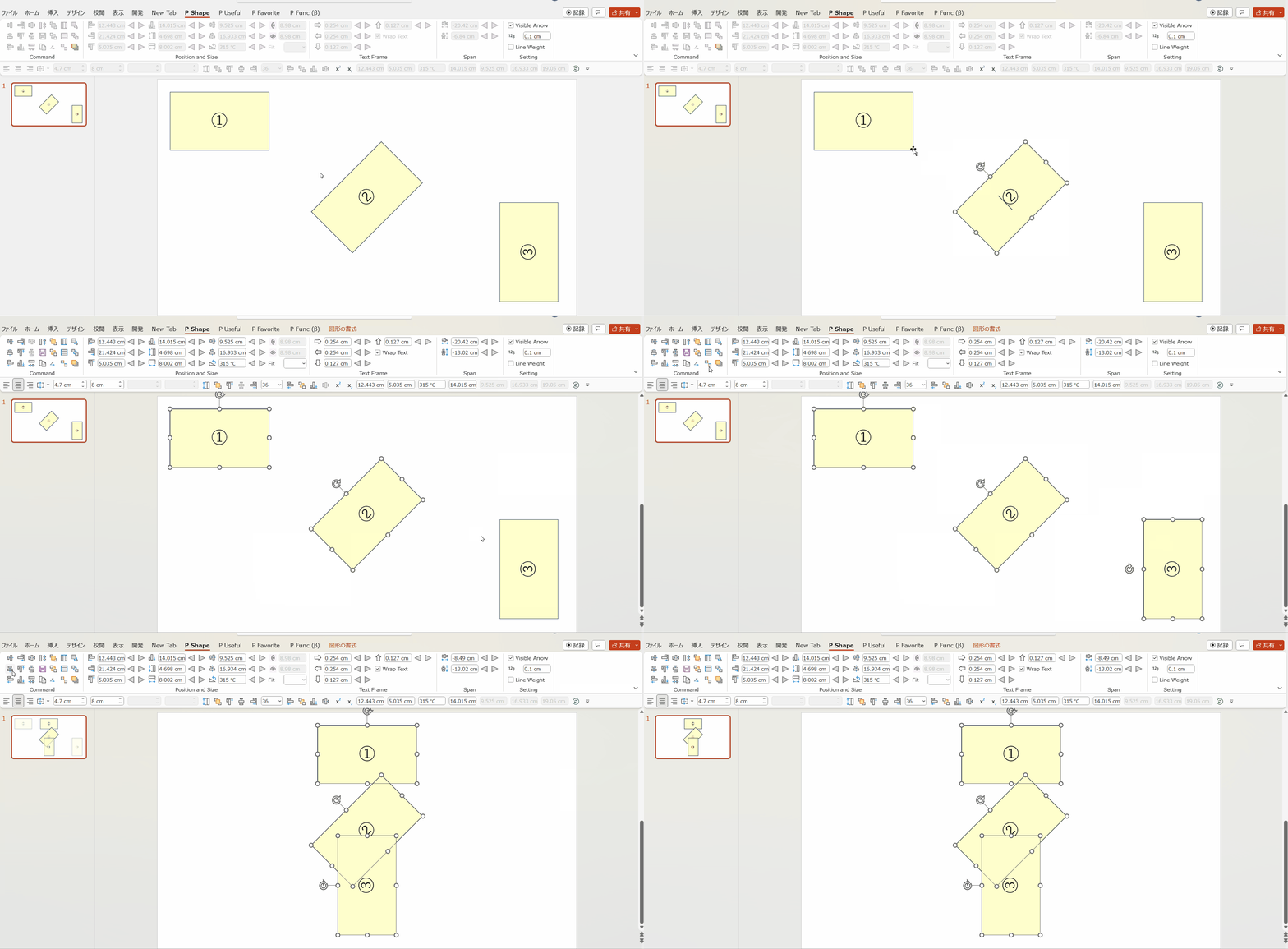
Please refer to the GIF image below.
After selecting the shape labeled as ②, select shapes ① and ③.
Then, executing Align Center will neatly align the horizontal centers of all shapes based on shape ②!
This is a highly frequently used feature!
Please make the most of it!
You can download the Power Up Kit from here.


Comments